Section 9: The Predefined Query Catalog
Every technique in this guide has been working towards a single practical outcome: you should be able to open the Predefined Query Catalog, run any query in it, read any query you have not seen before, and save your own. This final section covers all three.
What ships in the catalog
The catalog ships with approximately twenty-five predefined queries split between two blueprint types.
Queries prefixed DC_ target three-stage reference design blueprints — the environment you have been working with throughout this guide.
Queries prefixed FF_ target freeform blueprints and use different node types and relationships.
The DC_ queries relevant to a three-stage reference design fabric are:
| Query name | What it finds |
|---|---|
DC - All managed devices (any role) |
All deployed switching infrastructure — spine, leaf, access, superspine |
DC - All leafs and access switches |
Deployed leaf and access switches only |
DC - All managed devices by ASIC model |
Devices grouped by ASIC type (uses lambda with |
DC - All fabric interfaces |
Every active fabric link — both ends named, five output nodes per row |
DC - All non-fabric interfaces |
All interfaces not part of a fabric link — server-facing and management ports |
DC - All ESI links |
Redundancy group → ESI pair → physical links with cross-node role lambda |
DC - All VN instances |
Every VN instance across all deployed leaf switches with VLAN and VNI IDs |
DC - Virtual Networks with their routing policies |
VN → routing zone → routing policy traversal |
DC - VNs with leaf footprint |
Virtual networks with the list of leaf switches that host them |
DC - All routing zones |
All security zones (VRFs) in the blueprint |
DC - All routing zone policies |
Security zones with their attached routing policies |
These eleven queries cover the most common operational and automation scenarios. Understanding them puts you in a strong position to write queries for anything else you encounter.
Opening and searching the catalog
-
In the Graph Explorer, click the Predefined Queries button in the Query Editor toolbar.
-
The catalog panel opens on the right. Use the search box to filter by keyword.
-
Click any entry to load it into the Query Editor.
-
Click Execute to run it against your current blueprint.
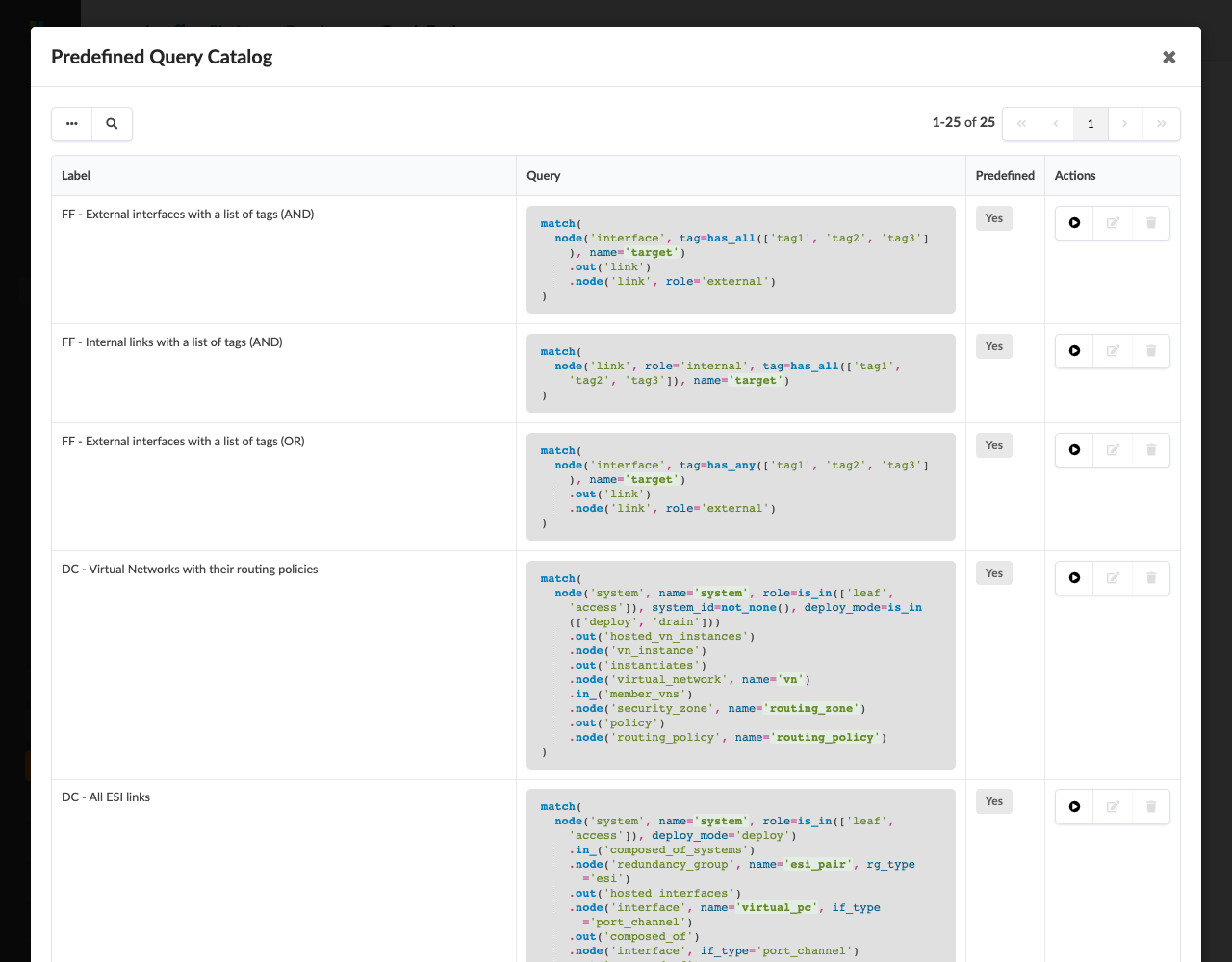
The query loaded into the editor is fully editable. Modifying it here does not change the saved catalog entry — you are working on a copy.
How to read an unfamiliar query
When you open a query you have never seen before, apply this reading method.
Step 1 — Identify the wrapper
Does the query start with match( or with node(?
-
node(— a simple traversal, read left to right. -
match(— multiple traversals or optional branches. Identify where each traversal starts and ends.
Step 2 — Identify the named nodes
Scan for name='…' in the text.
List all the names.
These are the nodes whose data appears in each result row.
Step 3 — Read each traversal left to right
For each node() in the chain, ask:
-
What type is this node?
-
What property filters narrow it?
-
Is it named?
For each .out() or .in_() hop, ask:
-
What is the relationship type?
-
Is the direction correct for this source and target type?
Step 4 — Identify any lambdas
Does the query end with .where(lambda …)?
Identify which named nodes the lambda references, and what comparison it is making.
Step 5 — State the query in plain English
Before running it, summarise what the query does in one sentence. If you cannot do this, re-read from step 1.
Worked example: DC - All fabric interfaces
match(                                             -- (1)
  node('system', name='system',                  -- (2)
       deploy_mode='deploy',
       role=is_in(['leaf', 'spine']))
    .out('hosted_interfaces')                     -- (3)
    .node('interface', name='iface',
          if_name=not_none())                     -- (4)
    .out('link')                                  -- (5)
    .node('link', link_type='ethernet',
          name='link')                            -- (6)
    .in_('link')                                  -- (7)
    .node('interface', name='remote_iface')       -- (8)
    .in_('hosted_interfaces')                     -- (9)
    .node('system',                               -- (10)
          role=is_in(['spine', 'access',
                      'superspine']),
          deploy_mode='deploy',
          name='remote_system')
)
Applying the reading method:
-
Wrapper: single
match()wrapping a single traversal. -
Named nodes:
system,iface,link,remote_iface,remote_system— five output fields per result row. -
Step 2 (starting node): deployed leaf or spine switch.
-
Step 3 (out hosted_interfaces): walk to interfaces on that switch.
-
Step 4 (interface): only named interfaces (no logical-only ports).
-
Step 5 (out link): walk to the link object.
-
Step 6 (link): Ethernet links only.
-
Step 7 (in_ link): arrive at the interface on the other end of the link.
-
Step 8 (remote interface): named.
-
Step 9 (in_ hosted_interfaces): arrive at the system hosting that interface.
-
Step 10 (remote system): deployed system with a role of spine, access, or superspine.
-
Lambda: none.
Plain English: "Find every Ethernet link in the fabric between a deployed leaf or spine switch and a deployed spine, access, or superspine switch, and return both ends of the link."
Saving your own queries
When you have written and tested a query you want to keep:
-
Click the Save button in the Query Editor toolbar.
-
Enter a descriptive name. Use a consistent prefix to group your queries (e.g.
ACME-for site-specific queries). -
Under Predefined, choose:
-
Yes — available to all users of this Apstra instance, shown in the catalog.
-
No — private to your current session; not shared with other users.
-
-
Click Save.
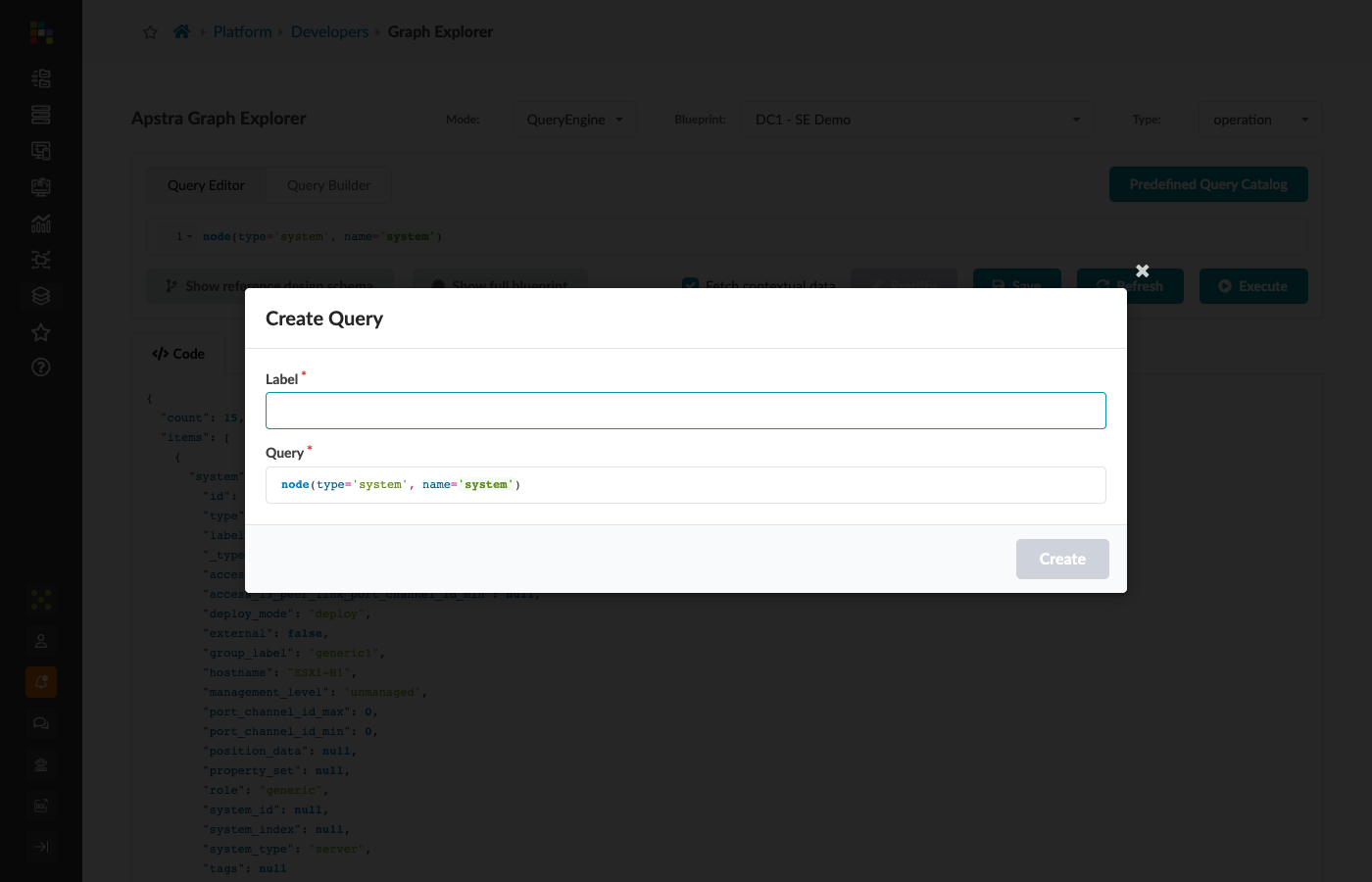
The query appears in the catalog immediately.
|
Save polished, tested queries — not drafts. A query in the catalog will be run by other team members who may not know its history. Include enough specificity in the name to make its purpose clear without needing to open it: Good: Less good: |
Best practices for the catalog as a team library
The Predefined Query Catalog is shared infrastructure. A few practices keep it useful over time:
Use consistent naming conventions.
Agree on a prefix for your organisation (CLIENT-, OPS-, AUDIT-) so your queries are grouped and discoverable.
Document the intent in the query name. The name should answer: what does this return, and why would you run it?
Do not save intermediate query steps. If you build a query incrementally (step 1, step 2, step 3), only save the final version.
Review the catalog periodically. Queries that targeted a specific project or audit period may become stale. Delete or archive them before they confuse the next user.
Use the catalog as a starting point. The built-in DC_ queries are excellent templates. Load one, modify it for your scenario, and save the modified version under a new name rather than editing the original.
Continuing your practice
You now have a complete toolkit:
-
node()with filters and property matchers for targeted object lookup -
.out()and.in_()traversals with type-constrained relationship hops -
name=for capturing output data -
.where(lambda …)for server-side filtering and cross-node comparisons -
ensure_different()anddistinct()for controlling traversal path deduplication -
match()for multi-path intersection queries -
optional()for conditional path elements
Return to Section 8 and select another catalog query to analyse using the reading method from this section. Then try constructing a query of your own that answers a question relevant to your fabric — something you would previously have answered with multiple REST API calls and a spreadsheet.
That is the point of the graph.