Lab Guide 1 - Multi-vendor
1. Configuration Deviation
Apstra detects when a manual configuration change occurs on one of its devices. You are then alerted that the network is is outside of its intended state. This simple exercise illustrates a basic function of Apstra’s IBA capabilities.
-
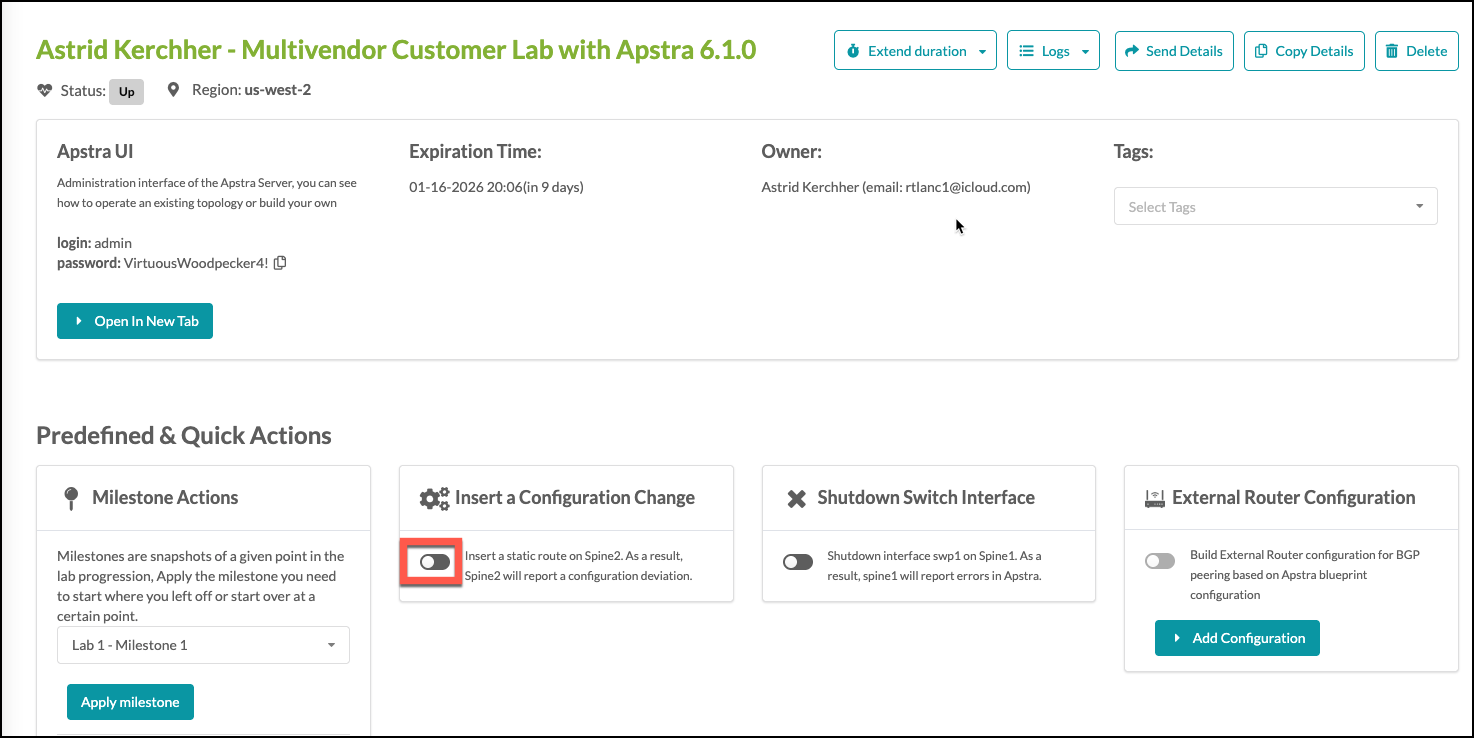
Go to your CloudLabs portal, and toggle the Insert a Configuration Change slider. The slider will turn green and you will see this message:
-
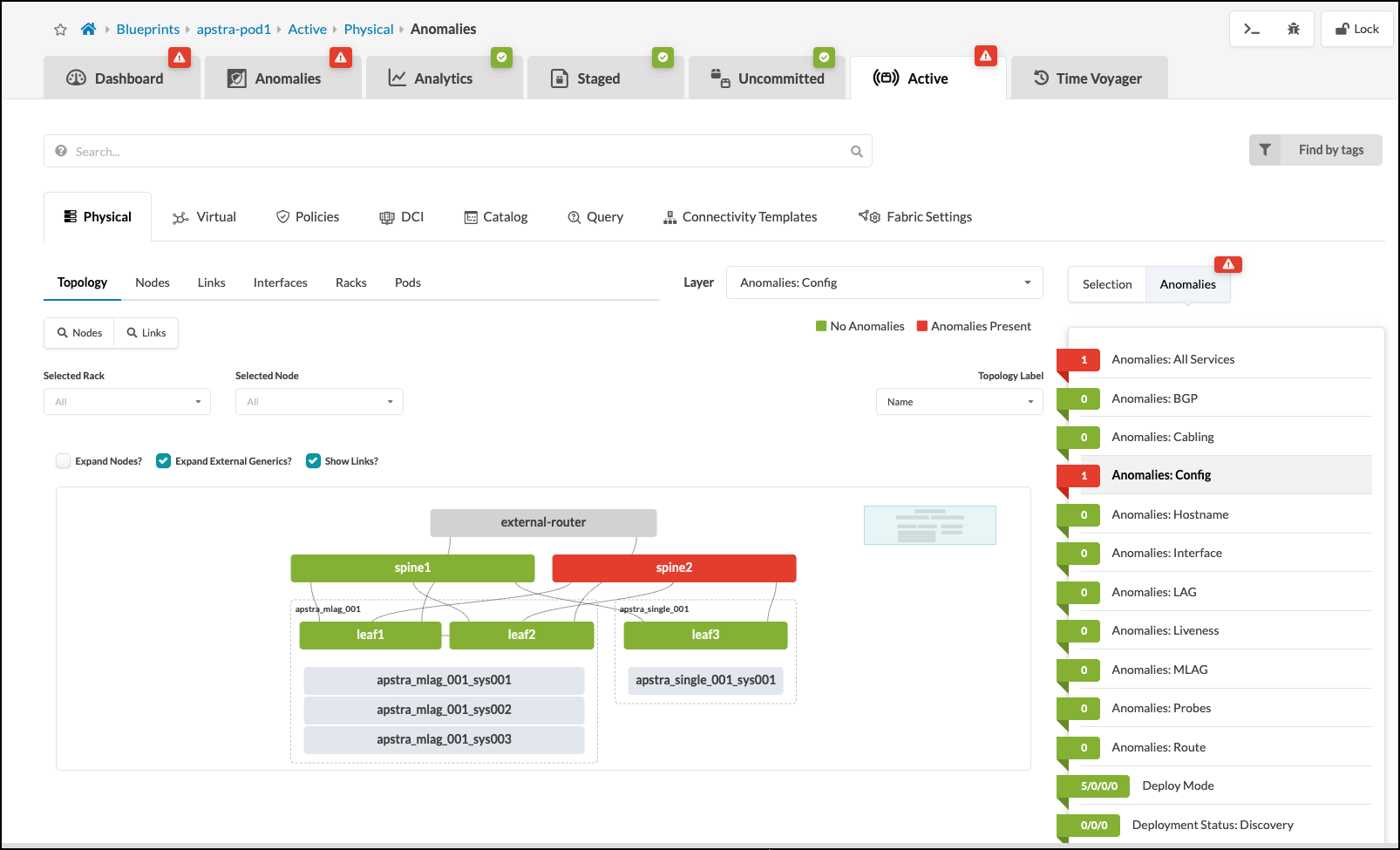
Return to the Apstra UI. Soon, a config deviation anomaly will appear. After noting the anomaly indicators, click spine2.
-
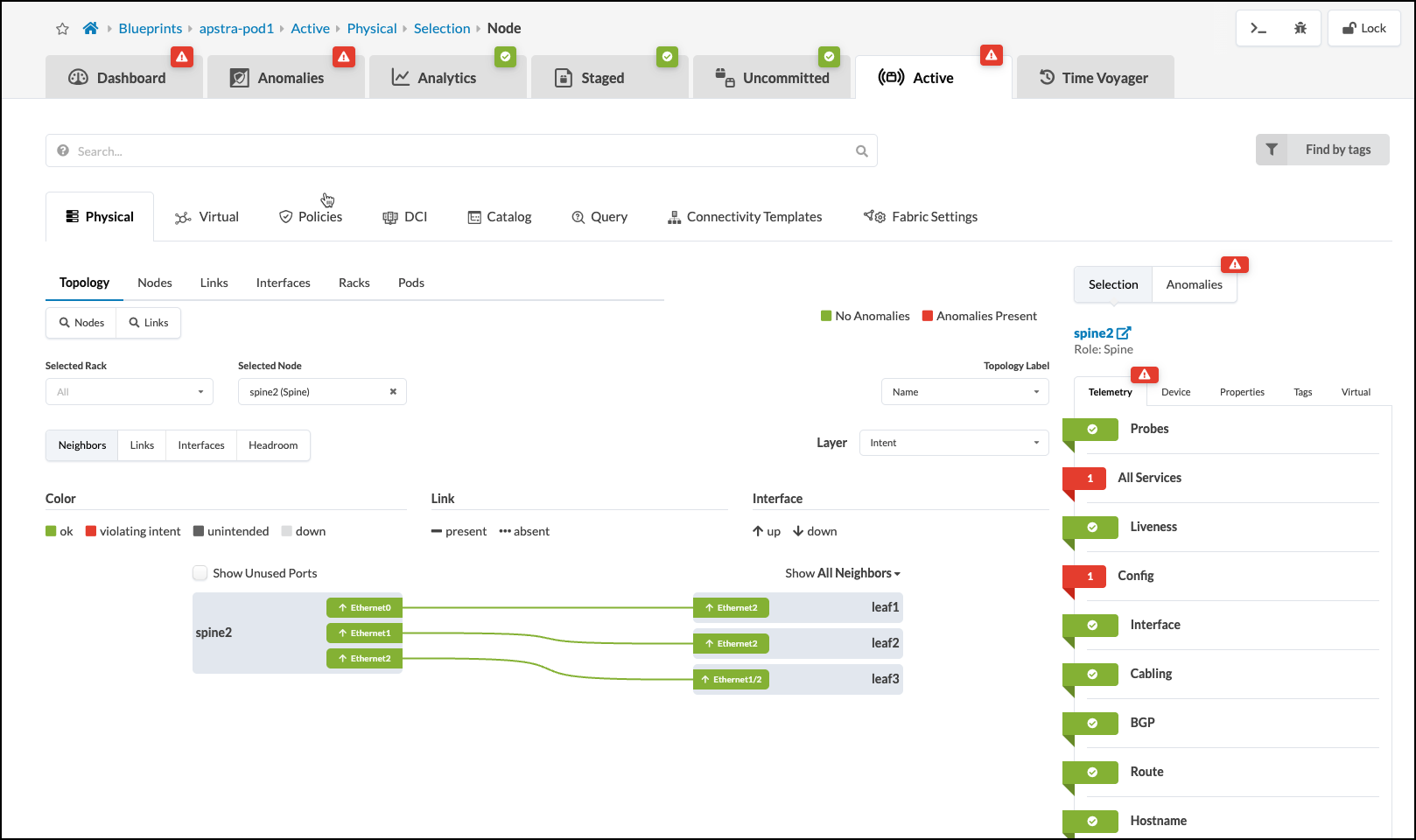
With spine2 selected, click the red box containing the number 1, next to Anomalies Config.
-
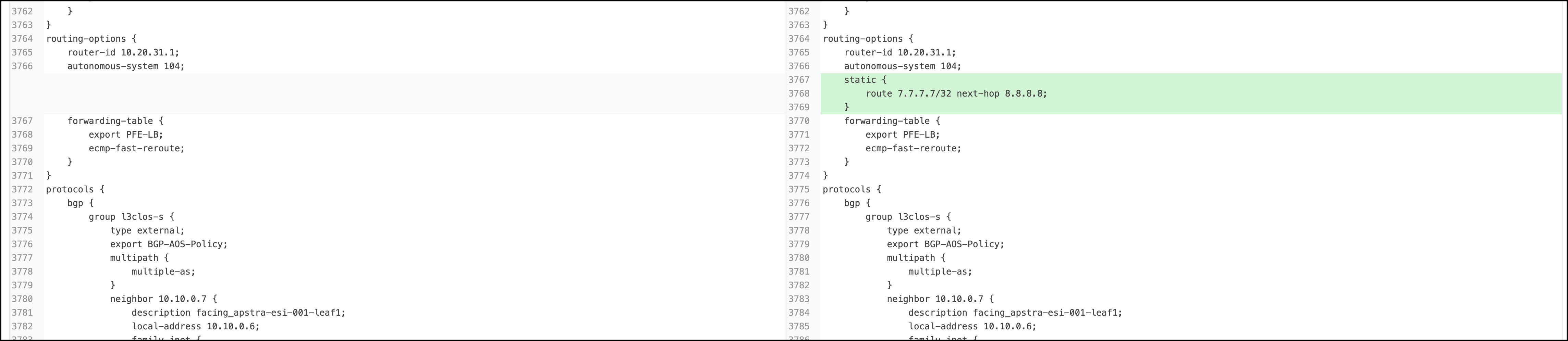
This reveals the view where the current spine2 configuration is compared to the intended configuration. Scroll down this view until you see the highlighted difference between the configurations. There are other paths in the Apstra UI to arrive at this view. If you wish, you can take time to follow the red anomaly indicators in the UI to discover these other paths.
-
After you’ve identified the problem, you can restore the original config by returning to the CloudLabs portal and toggling off Insert a Configuration Change and the blueprint anomaly will clear after a few moments. In a production environment, any configuration deviation alerts can be acknowledged using the Accept Changes button. You would also be able to use the Apply Full Config in the Apstra UI to revert the device back to the golden configuration