Section 8: Practical Queries
This section works through four real queries drawn from the predefined catalog. Each one is dissected line by line. The goal is not just to understand what these specific queries do — it is to build the reading and writing habits that let you construct queries for your own scenarios.
Query 1: All managed devices (any role)
The predefined query: DC - All managed devices (any role)
The scenario: You are building an automation script and need a list of every active switching device in the fabric along with its hostname and system ID.
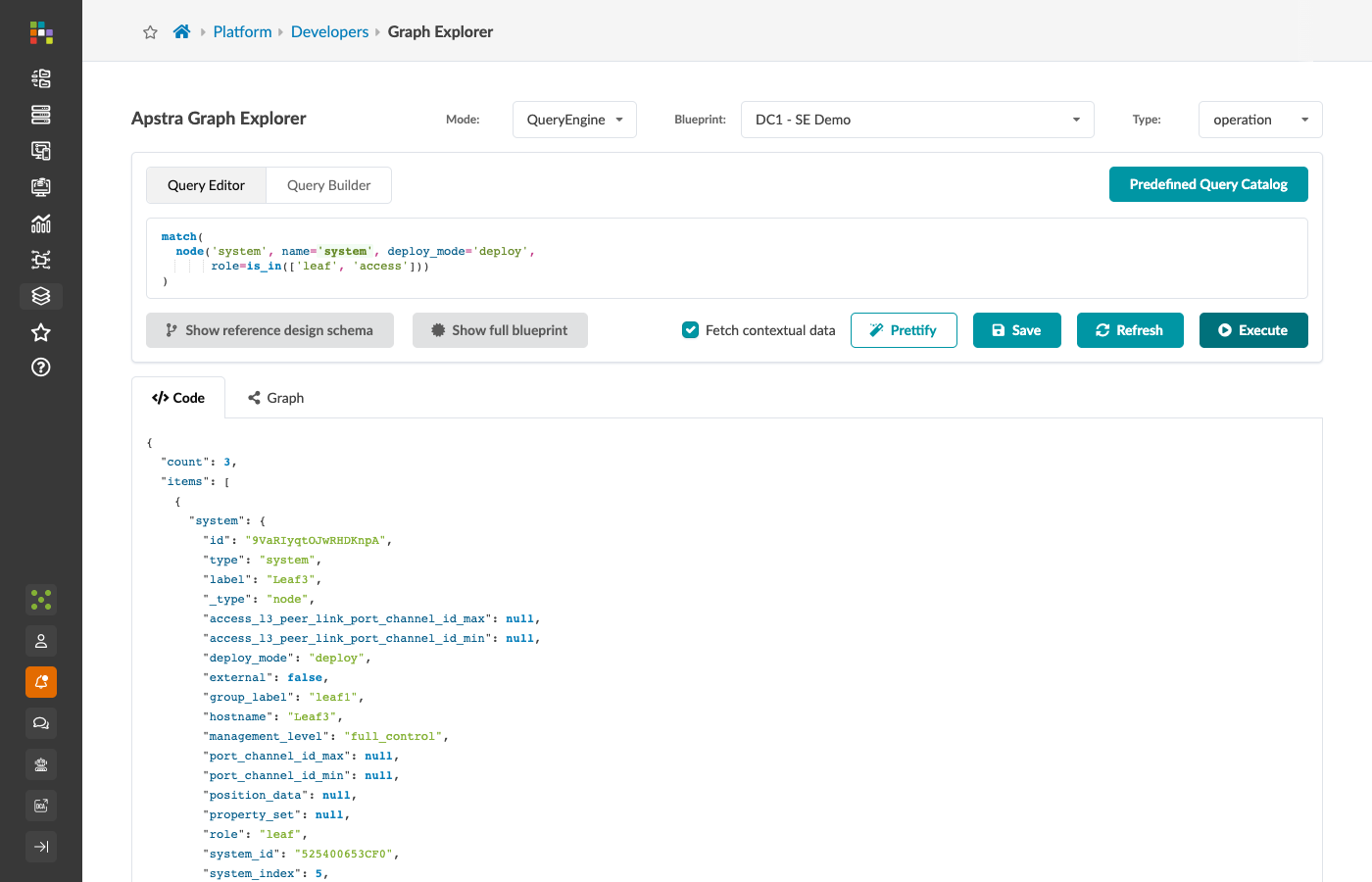
match(
  node('system', name='system', deploy_mode='deploy',
       role=is_in(['leaf', 'access', 'spine', 'superspine']))
)
Reading this query
match() wraps a single traversal here — it is not combining multiple paths.
The match() wrapper is used because it is the standard form for queries that will be run programmatically and whose results need to be reliable across complex blueprints.
node('system', …) — type shorthand for node(type='system', …).
deploy_mode='deploy' — only deployed systems.
Devices that exist in the design but have not been pushed to hardware are excluded.
role=is_in([…]) — matches any system whose role is one of the four listed values.
Generic servers (role='generic') are excluded because this query targets switching infrastructure only.
name='system' — every matched system appears in the JSON output under the key "system".
What you get back
Each item in the result array is a dictionary with a single key:
{
  "system": {
    "id": "abc123",
    "type": "system",
    "label": "spine001",
    "role": "spine",
    "hostname": "spine001.dc1.example.com",
    "system_id": "5254001234ab",
    "deploy_mode": "deploy",
    ...
  }
}
When to use it
Before making API calls that require a system ID: the system_id field in each result is the hardware device serial/MAC that Apstra uses to associate a blueprint system with a physical device.
The id field is the internal graph node ID used in blueprint API calls.
Run this query, extract result['system']['id'] for each item, and use those IDs in subsequent API calls to modify system properties.
Query 2: All leaf/access switches
The predefined query: DC - All leafs and access switches
The scenario: You want to audit which leaf and access switches are currently deployed and collect their labels for a report.
match(
  node('system', name='system', deploy_mode='deploy',
       role=is_in(['leaf', 'access']))
)
This is the same structure as Query 1 with a narrower role filter. Use this whenever your operation targets the access layer only — generic server switches, ToR devices — and does not include spine switches.
Query 3: Virtual Networks with their routing policies
The predefined query: DC - Virtual Networks with their routing policies
The scenario: You want to audit the routing policy assigned to every virtual network in the fabric. You need the VN name, its routing zone, and the routing policy name — all in a single result row.
match(
  node('system', name='system', role=is_in(['leaf', 'access']),
       system_id=not_none(), deploy_mode=is_in(['deploy', 'drain']))
    .out('hosted_vn_instances')
    .node('vn_instance')
    .out('instantiates')
    .node('virtual_network', name='vn')
    .in_('member_vns')
    .node('security_zone', name='routing_zone')
    .out('policy')
    .node('routing_policy', name='routing_policy')
)
Reading this query step by step
Line 2 — Starting node:
node('system', name='system', role=is_in(['leaf', 'access']),
     system_id=not_none(), deploy_mode=is_in(['deploy', 'drain']))
Starts at deployed leaf or access switches that have a system_id assigned.
deploy_mode=is_in(['deploy', 'drain']) — note that this includes systems in drain mode, not just fully deployed ones.
A system in drain mode is still running and hosting VNs; it is being gracefully removed from service.
system_id=not_none() excludes systems that exist in the design but are not assigned to physical hardware.
Line 3 — First hop:
.out('hosted_vn_instances')
.node('vn_instance')
Walk to every VN instance hosted on that system. A VN instance is the leaf-specific instantiation of a virtual network — it carries the VLAN ID used on that specific leaf.
Lines 4–5 — Second hop:
.out('instantiates')
.node('virtual_network', name='vn')
Walk from the VN instance to the parent virtual network.
The virtual network is the fabric-wide definition of the overlay network — it has the VNI, the name, and the routing zone membership.
This node is named vn because we want it in the output.
Lines 6–7 — Third hop:
.in_('member_vns')
.node('security_zone', name='routing_zone')
Walk backwards along member_vns to reach the security zone.
The relationship points from the security zone to the virtual network (the zone "has" member VNs).
We are traversing it inbound — hence .in_('member_vns').
This node is named routing_zone.
Lines 8–9 — Fourth hop:
.out('policy')
.node('routing_policy', name='routing_policy')
Walk to the routing policy attached to this security zone.
Named routing_policy.
What you get back
Each result row contains three named nodes:
{
  "system":         { "label": "leaf001", "role": "leaf", ... },
  "vn":             { "label": "production-vn1", "vn_id": 10001, ... },
  "routing_zone":   { "label": "prod-vrf", "sz_type": "evpn", ... },
  "routing_policy": { "label": "default-export-policy", ... }
}Query 4: All fabric interfaces
The predefined query: DC - All fabric interfaces
The scenario: You need a complete inventory of every active fabric link — both ends — including the device names, interface names, and the link itself. This is the foundation for any automation that operates at the link level.
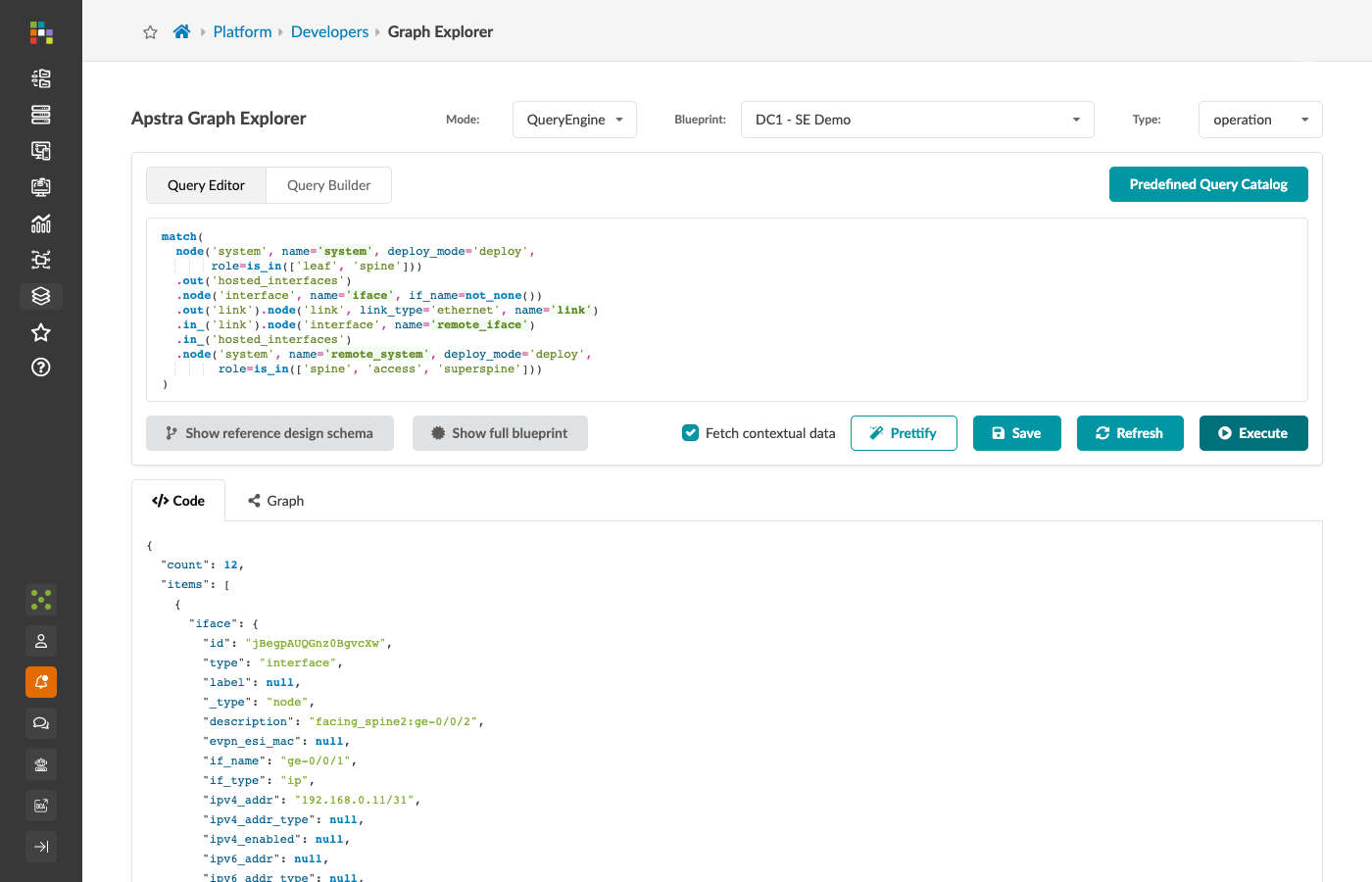
match(
  node('system', name='system', deploy_mode='deploy',
       role=is_in(['leaf', 'spine']))
    .out('hosted_interfaces')
    .node('interface', name='iface', if_name=not_none())
    .out('link')
    .node('link', link_type='ethernet', name='link')
    .in_('link')
    .node('interface', name='remote_iface')
    .in_('hosted_interfaces')
    .node('system', role=is_in(['spine', 'access', 'superspine']),
          deploy_mode='deploy', name='remote_system')
)
Reading this query
The local system:
role=is_in(['leaf', 'spine']) — starts from leaf or spine switches only.
Walking to the local interface:
if_name=not_none() — only interfaces with assigned names.
This excludes logical constructs without physical names.
The link:
link_type='ethernet' — Ethernet links only.
This excludes logical aggregate and loopback links that would otherwise appear in the traversal.
Walking back to the remote interface and system:
The in_('link') traverses the same link node from the other end.
The in_('hosted_interfaces') walks back to the system hosting the remote interface.
The remote system:
role=is_in(['spine', 'access', 'superspine']) — note this is a different role set from the local system.
This ensures we only capture cross-role links (leaf↔spine, spine↔superspine) rather than intra-role connections.
Five named nodes:
system, iface, link, remote_iface, remote_system — every piece of information about both ends of the link is in each result row.
What you get back
{
  "system":        { "label": "leaf001", "role": "leaf", ... },
  "iface":         { "if_name": "xe-0/0/0", "operation_state": "up", ... },
  "link":          { "link_type": "ethernet", "speed": "10G", ... },
  "remote_iface":  { "if_name": "et-0/0/4", ... },
  "remote_system": { "label": "spine001", "role": "spine", ... }
}
When to use it
This query is the starting point for any link-level automation:
-
Changing interface speeds across the fabric — extract
iface.idfor the API call. -
Generating a cabling report — extract
system.label,iface.if_name,remote_system.label,remote_iface.if_namefor each row. -
Verifying that every fabric link is operationally up — filter the results on
iface.operation_state == 'up'.
Writing your own queries: a method
The four queries above share a common construction method:
-
Identify the output nodes — what do you actually need in the JSON result? These are the nodes that get
name=. -
Identify the path — draw the chain of hops from your starting node to your output nodes. Use the reference design schema or the Graph Explorer canvas to verify direction and relationship type names.
-
Add filters at each step — narrow each
node()expression to the tightest set of matching nodes. Always includedeploy_mode='deploy'when you only want to target live devices. -
Name only what you need — unnamed nodes still constrain the path but reduce output verbosity.
-
Test incrementally — run the query one hop at a time. Confirm each step returns the nodes you expect before adding the next hop.
Continue to Section 9: The Predefined Query Catalog to learn how to save and share your own queries.