Section 5: Rolling back the fabric as a system
|
This lab environment does not include live production traffic sources, so monitoring and telemetry views are limited. Feel free to look around at the Analytics tab and Dashboard to see what all is present. In this section, you will use Time Voyager to stage and review a return to an earlier blueprint state. |
Scenario: the project is canceled
You have made several commits in this lab to expand and connect services. Now imagine a realistic change-control outcome:
The project that required these changes is not going ahead.
Your task is to stage and review a return to the previous approved blueprint state.
This is not a per-device cleanup exercise. It is a proposed fabric-level state transition.
Compare the fabric graph before and after
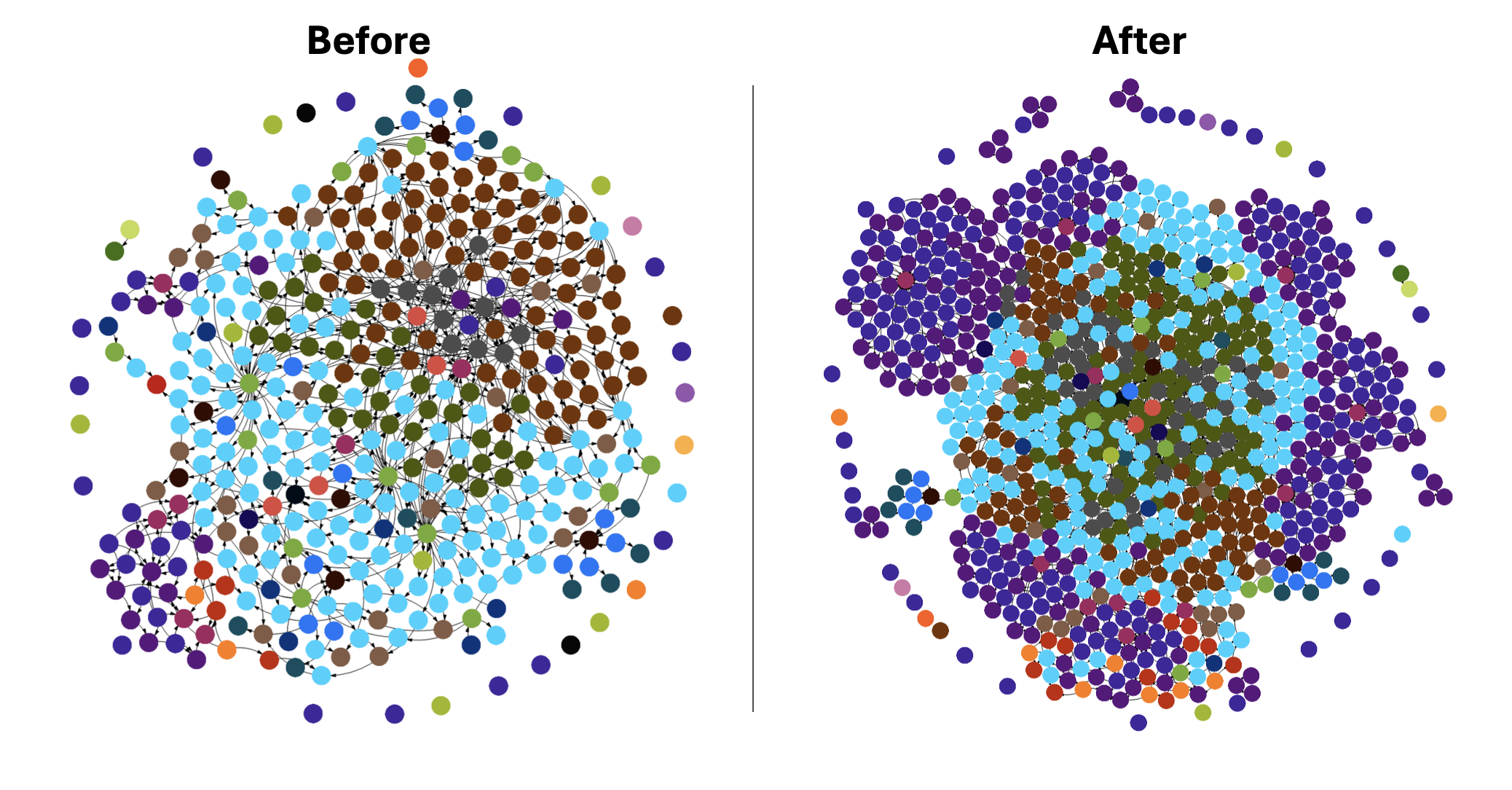
The illustration below provides an idea of how the graph model looks before and after an expansion like you have done. Each graph represents a blueprint state. Your lab’s graph may look different than these. But the comparative complexities are quite similar.
The key idea is simple:
-
the original graph is smaller and simpler
-
the expanded graph represents additional modeled elements
-
a rollback stages a transition from the current blueprint state to an earlier one
Stage a rollback with Time Voyager
Now stage a rollback and review its impact.
|
Rollback replaces the Staged blueprint and discards any existing uncommitted changes. Check the Uncommitted tab first. If it contains changes you need to keep, ask an instructor before proceeding. |
-
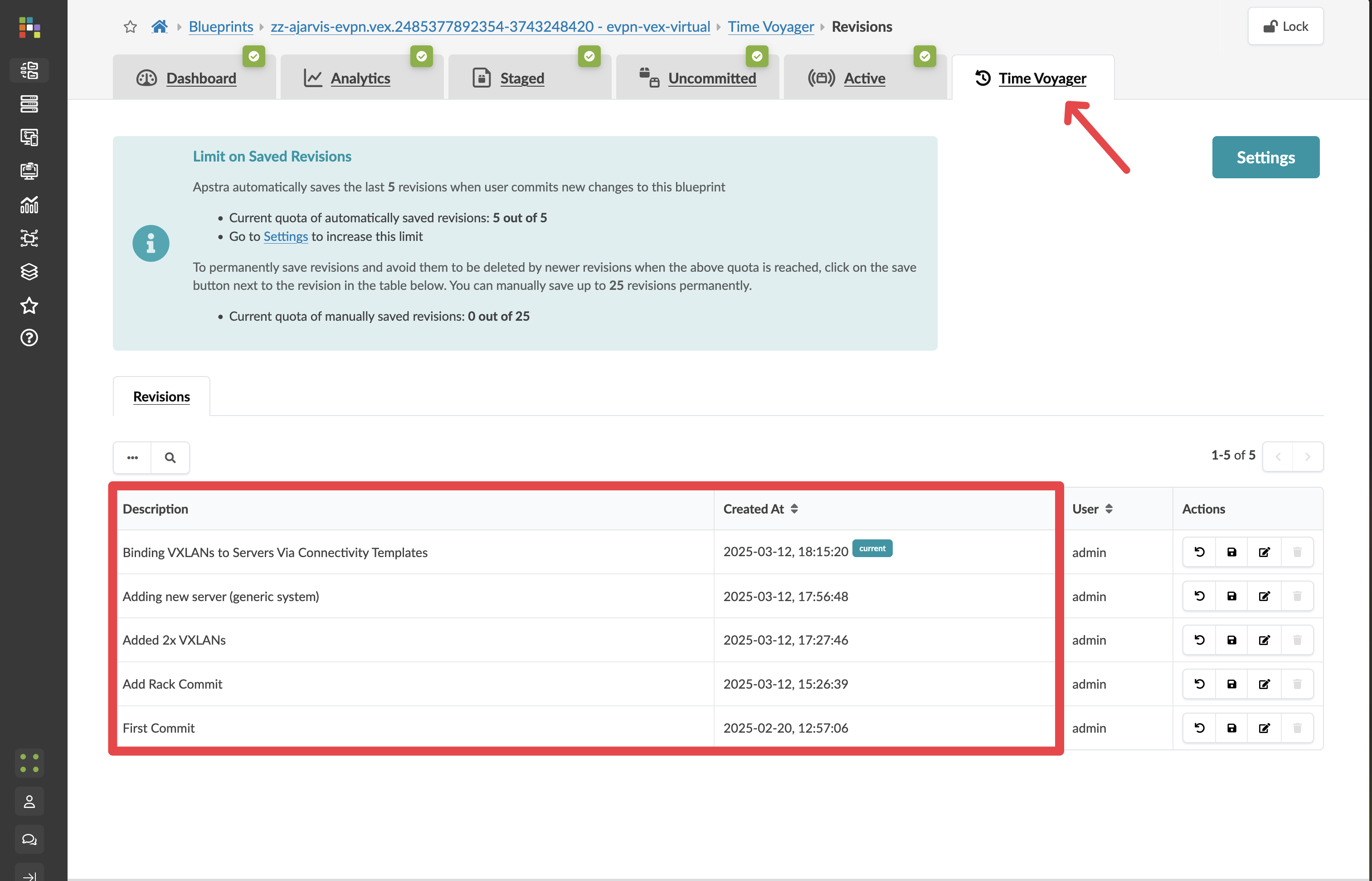
From your blueprint, open the Time Voyager tab.
-
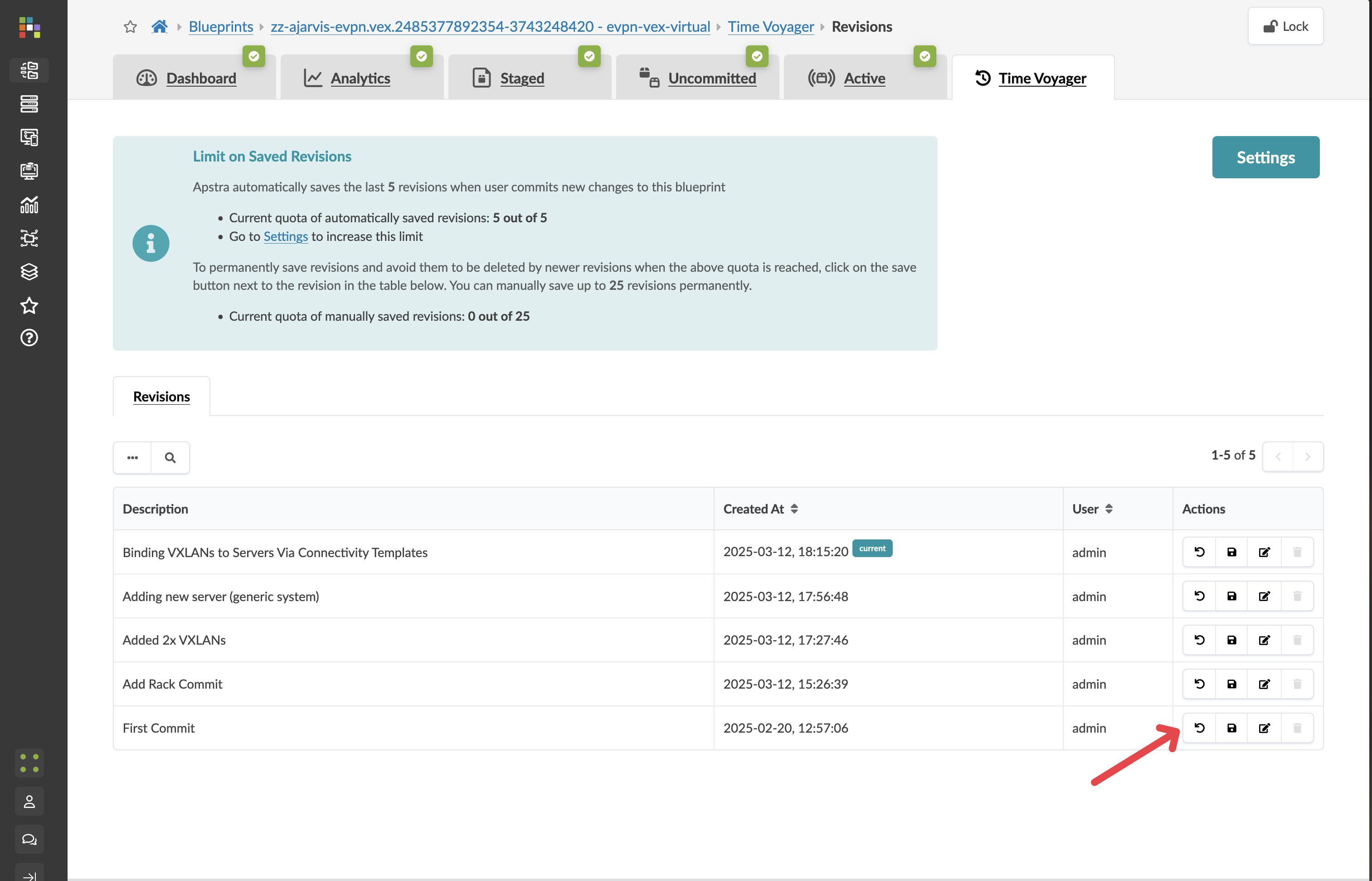
In the commit history, locate the revision from before you added the analytics rack. Use the commit descriptions and timestamps to identify it - it will likely be the one just before Prestaged new analytics rack, if you typed what the guide suggested. If you cannot find it, ask an instructor before proceeding.
-
Click the rollback icon for that revision, review the confirmation, and click Rollback.
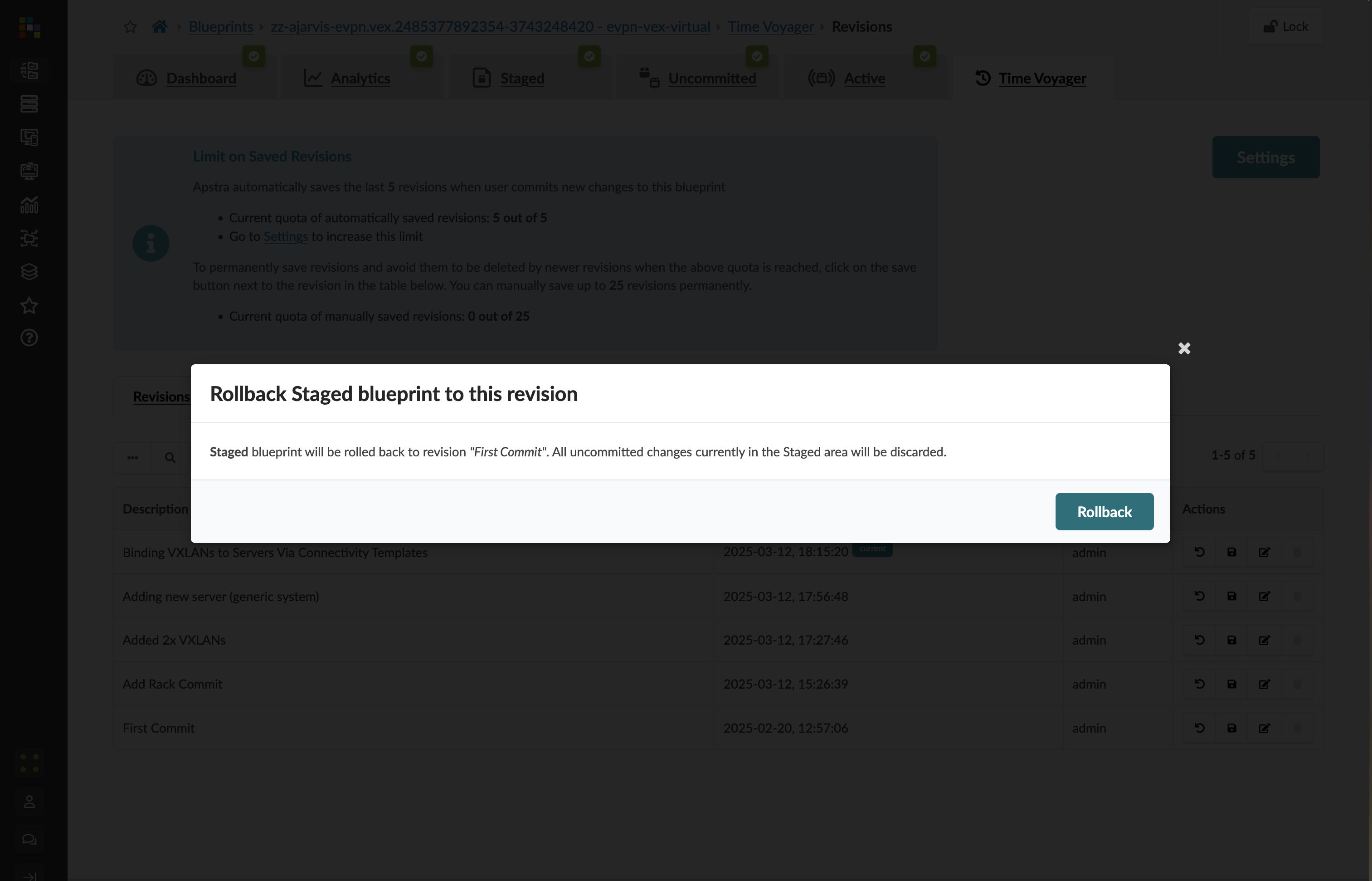
Rollback does not immediately change the committed blueprint or live network. It stages the selected historical state first so you can inspect the impact.
-
Open the Staged tab to review the proposed restored state.
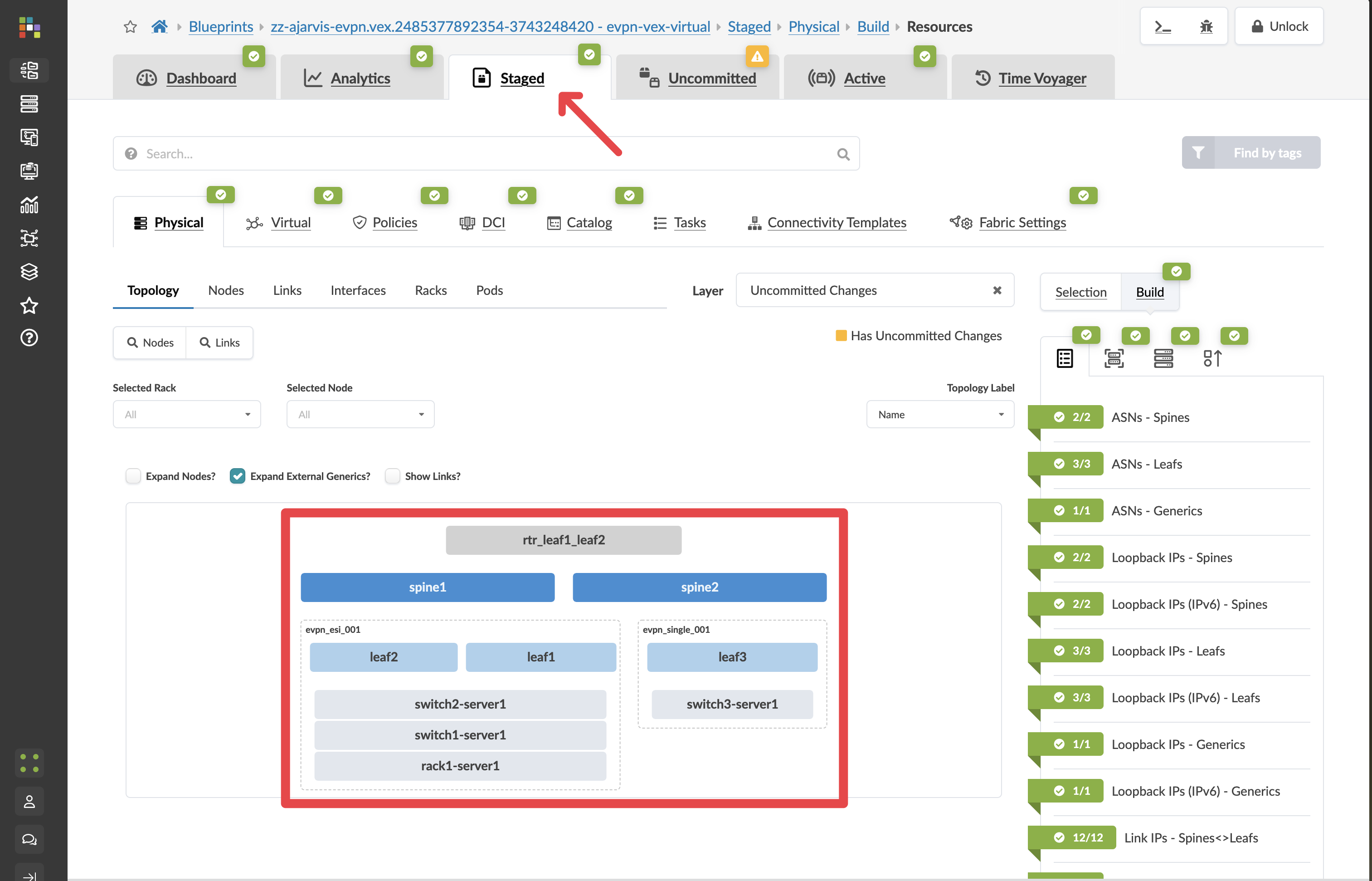
-
Open Active to confirm the committed blueprint state is unchanged.
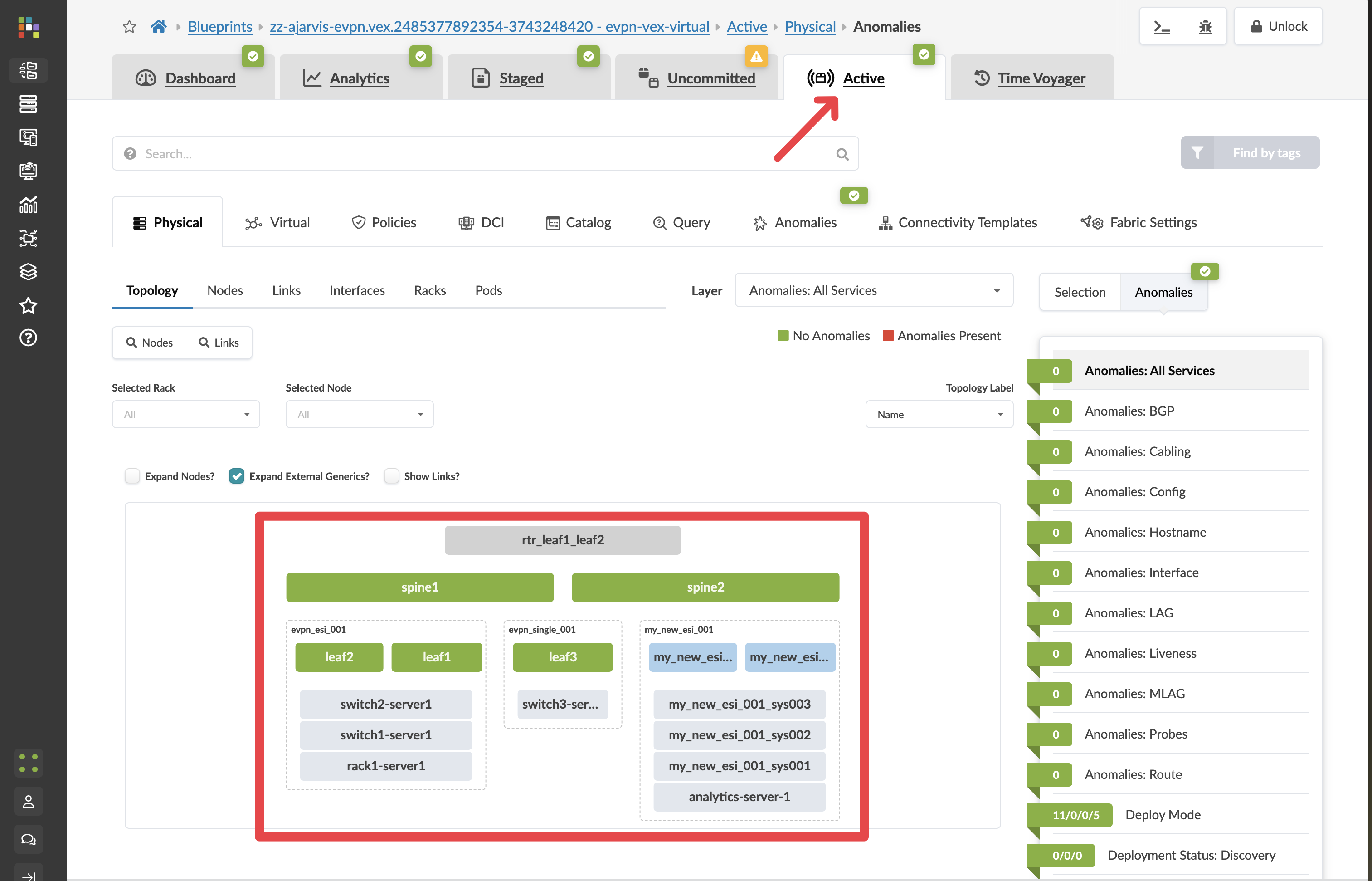
-
Open Uncommitted to inspect the exact diff.
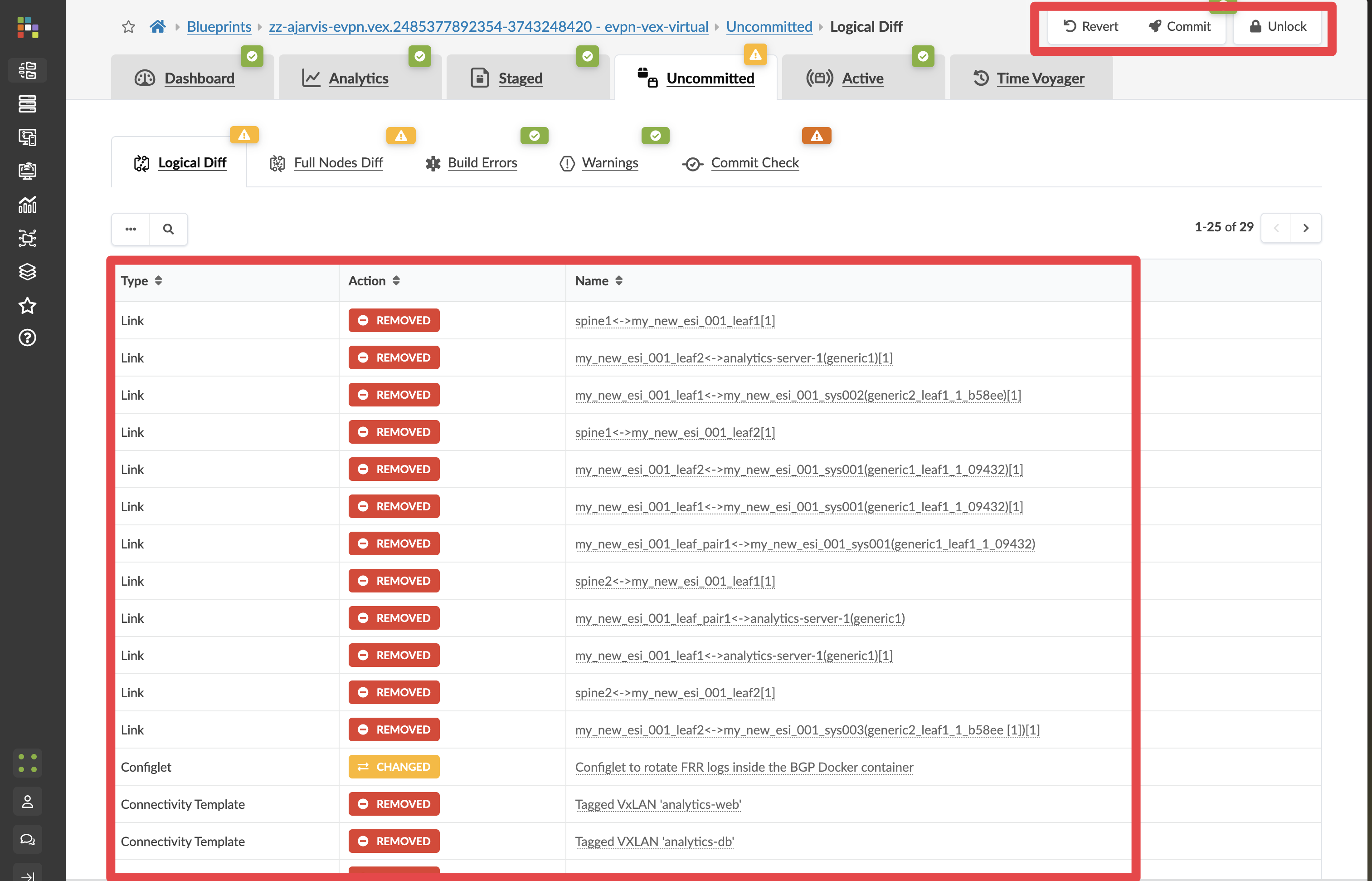
Red elements indicate what would be removed. Amber elements indicate what will be changed. Green elements indicate what would be restored.
Outcome: a rollback staged for review
You have staged an earlier blueprint state and reviewed the proposed changes. The rollback is not applied to the committed blueprint until you commit it.
This is the core operational model:
-
You are not managing isolated boxes one by one.
-
You are managing a single distributed system with a declared intent.
-
A committed rollback can restore an earlier blueprint intent across affected devices, rather than undoing configuration fragments on multiple devices, one by one. Wow!