Lab Guide 1 - Multi-vendor
Configlets
Configlets are small configuration segments used to apply device settings that fall outside the Apstra Reference Design parameters. Common uses for Configlets include syslog, SNMP, TACACS/RADIUS, management interface ACLs, control plane policing, and NTP settings. We will use NTP in this exercise to demonstrate the process of working with Configlets.
We will also use another mechanism called Property Sets. Property Sets provide additional flexibility by allowing us to use variables in a Configlet. This is useful when we want to use a common Configlet structure across devices that require different values. In this exercise, we will add the SONiC configuration style and variables to an existing NTP Configlet. Property Sets will supply the IP address of the NTP server and identify the VRF where the configuration will be applied.
Configlets are a powerful way to apply configuration that falls outside the Apstra Reference Design. Do not use Configlets for features that Apstra manages directly. Doing so can interfere with the proper operation of the solution. It is critical that configurations applied through Configlets are thoroughly verified before they are applied to a Blueprint. Malformed Configlets can cause errors and interfere with deployment.
This exercise introduces the fundamental concepts of Configlets. For a deeper dive into Apstra Configlets, see the following TechPost article:
Edit NTP Configlet
Let’s add an operating system configuration style to an existing Configlet.
-
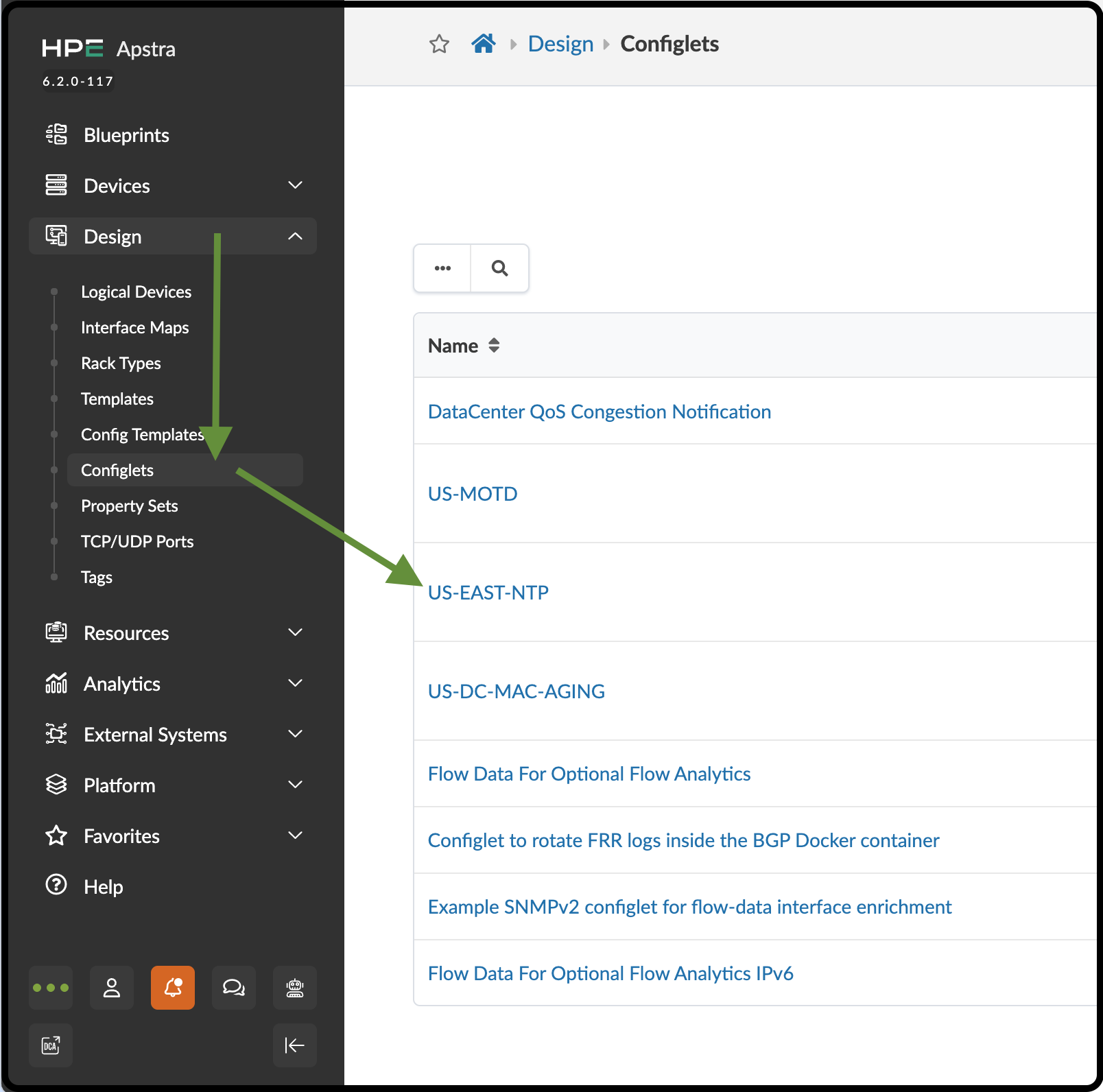
Navigate to Design > Configlets and click US-EAST-NTP to see its details.
-
Click the Edit button in the upper-right corner, then click Add a Style at the bottom of the dialog.
-
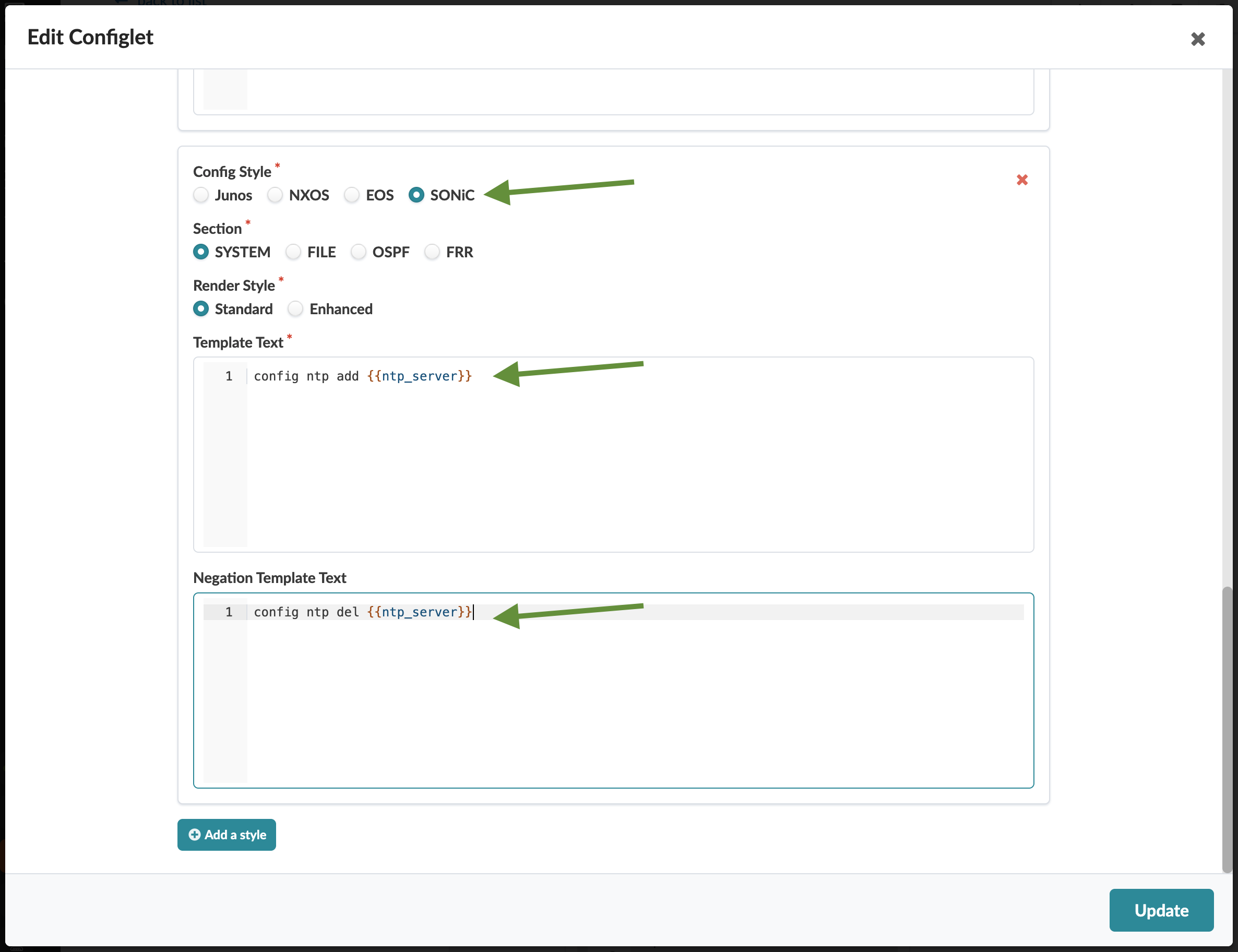
For Config Style, select SONiC. For Section, select System.
-
For Template Text, copy and paste the following text.
config ntp add {{ntp_server}} -
For Negation Template Text, copy and paste the following text.
config ntp del {{ntp_server}} -
Click Update in the lower-right corner to add the SONiC configuration style to the existing Configlet.
Apply NTP Configlet
Now, we need to apply the NTP Configlet to the Blueprint so that the NTP service is enabled for the network devices in our topology.
-
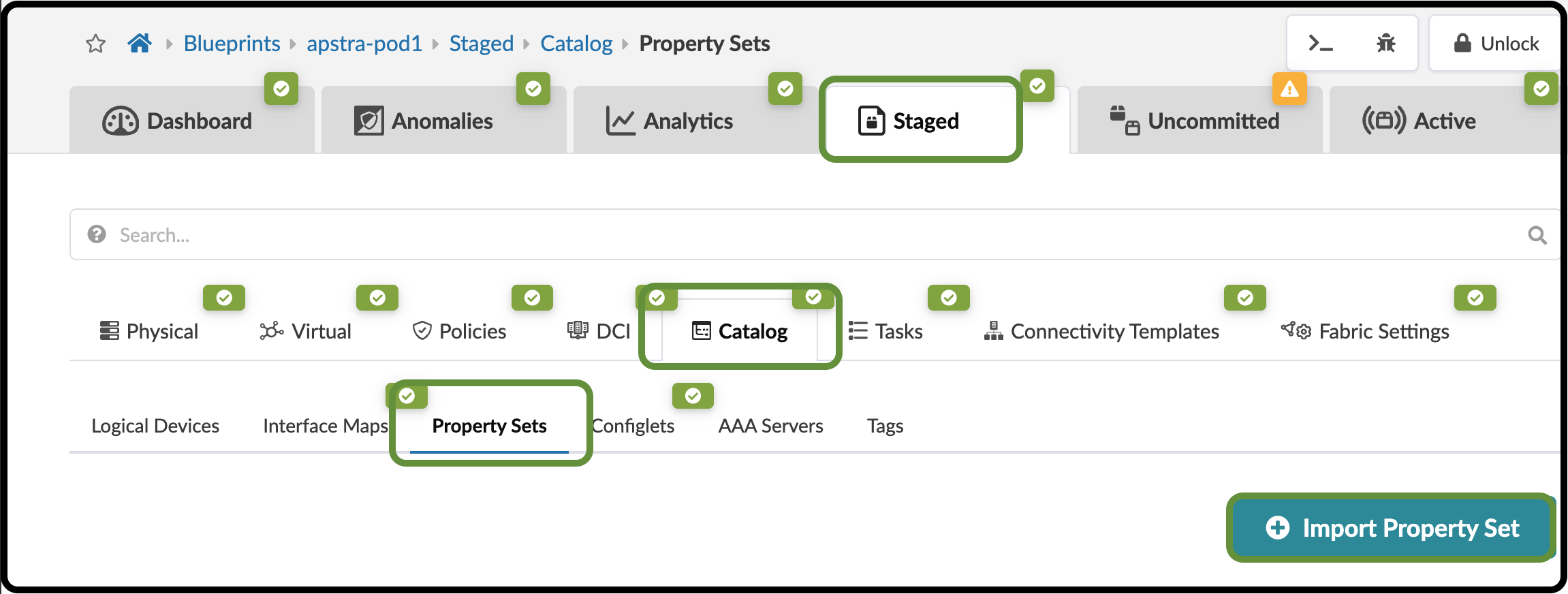
This Configlet uses multiple variables that are set using Property Sets, so the first step is to import them into the Blueprint. From the Blueprint, navigate to Staged > Catalog > Property Sets and click Import Property Set.
-
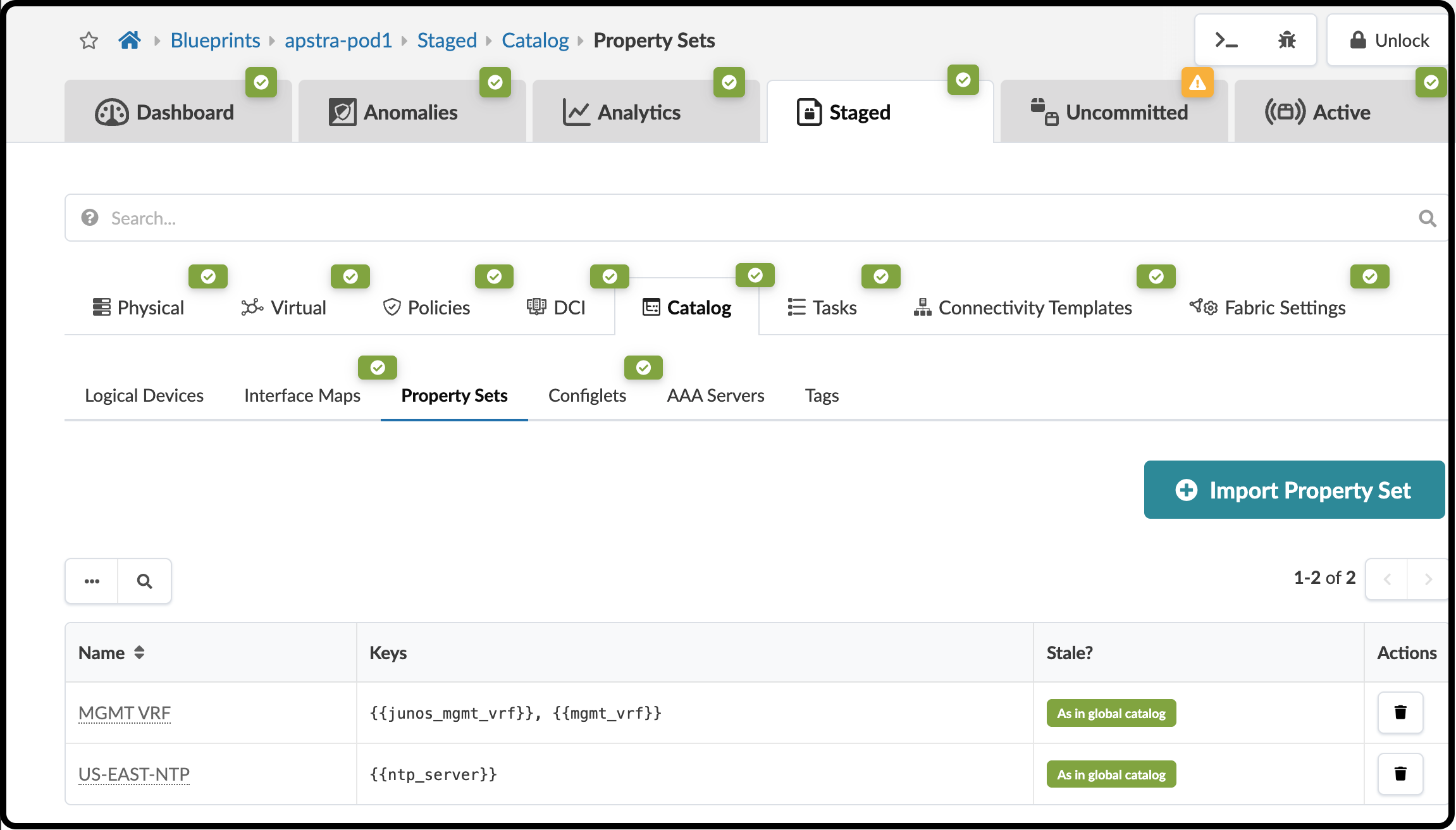
Select US-EAST-NTP from the drop-down list, then click Import Property Set. The Property Set is added to the Blueprint catalog. Repeat this process for the MGMT VRF Property Set.
-
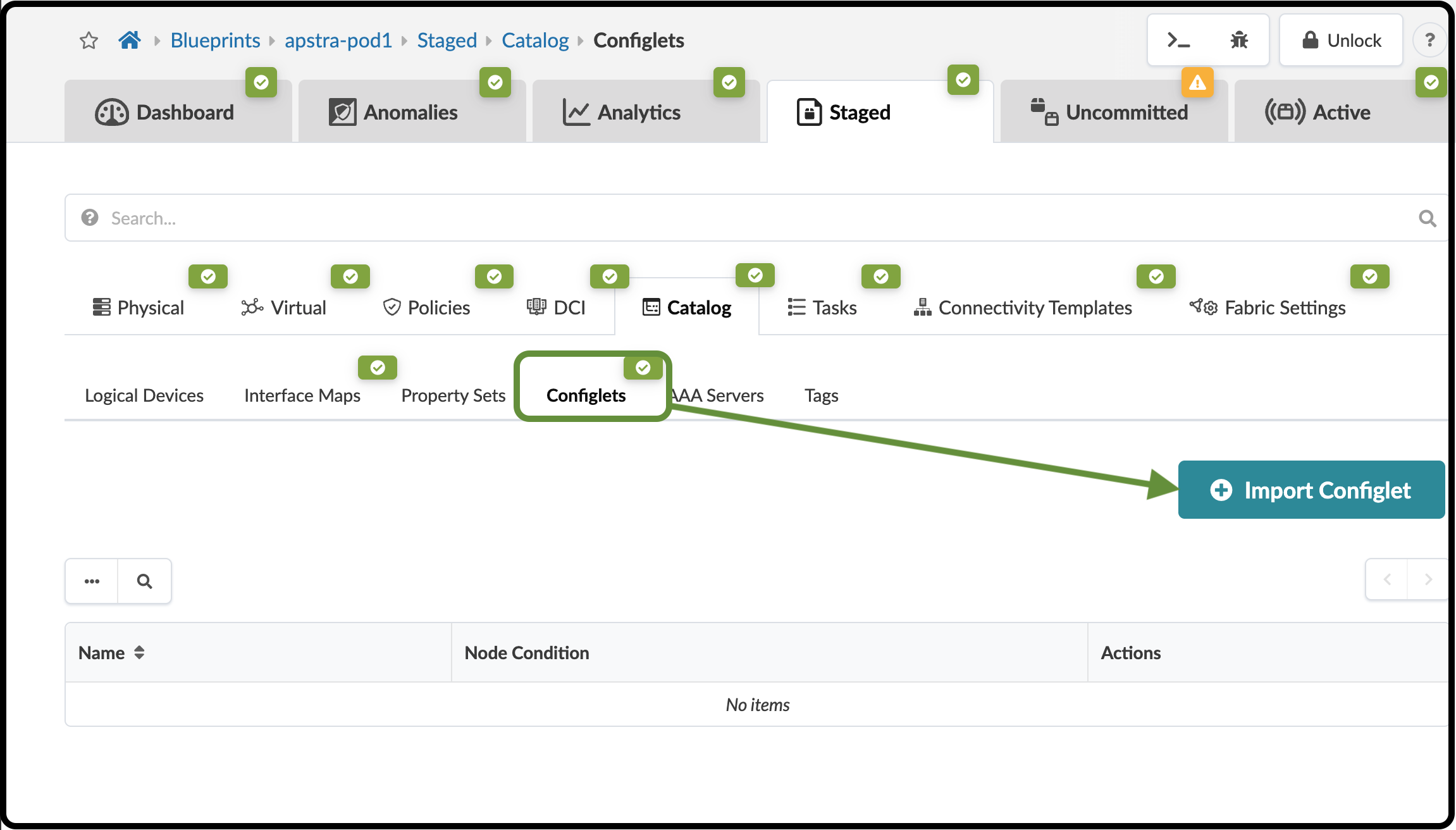
Navigate to the Configlets tab under Catalog and click Import Configlet.
-
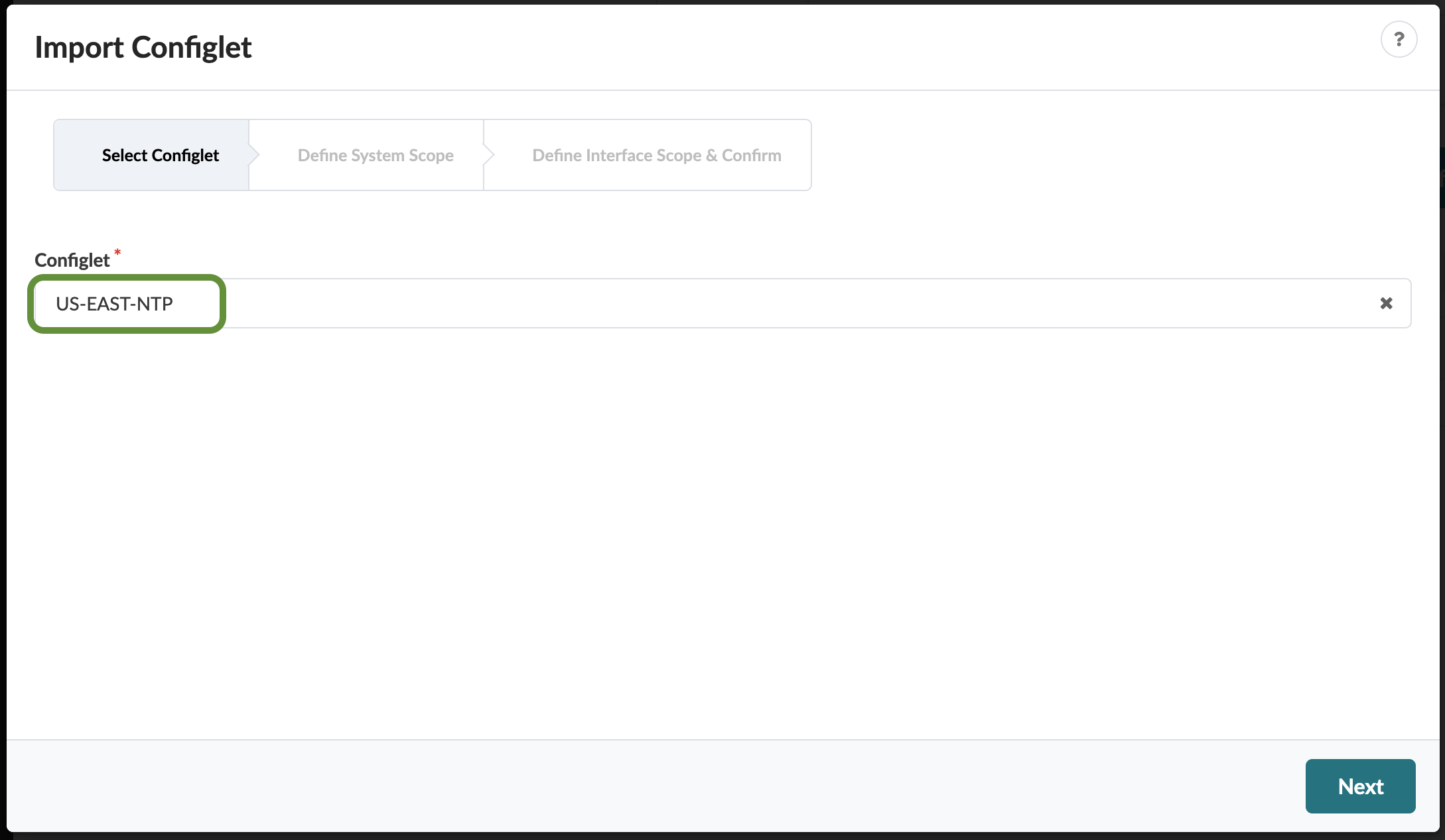
Select US-EAST-NTP from the Configlet drop-down list, then click Next.
-
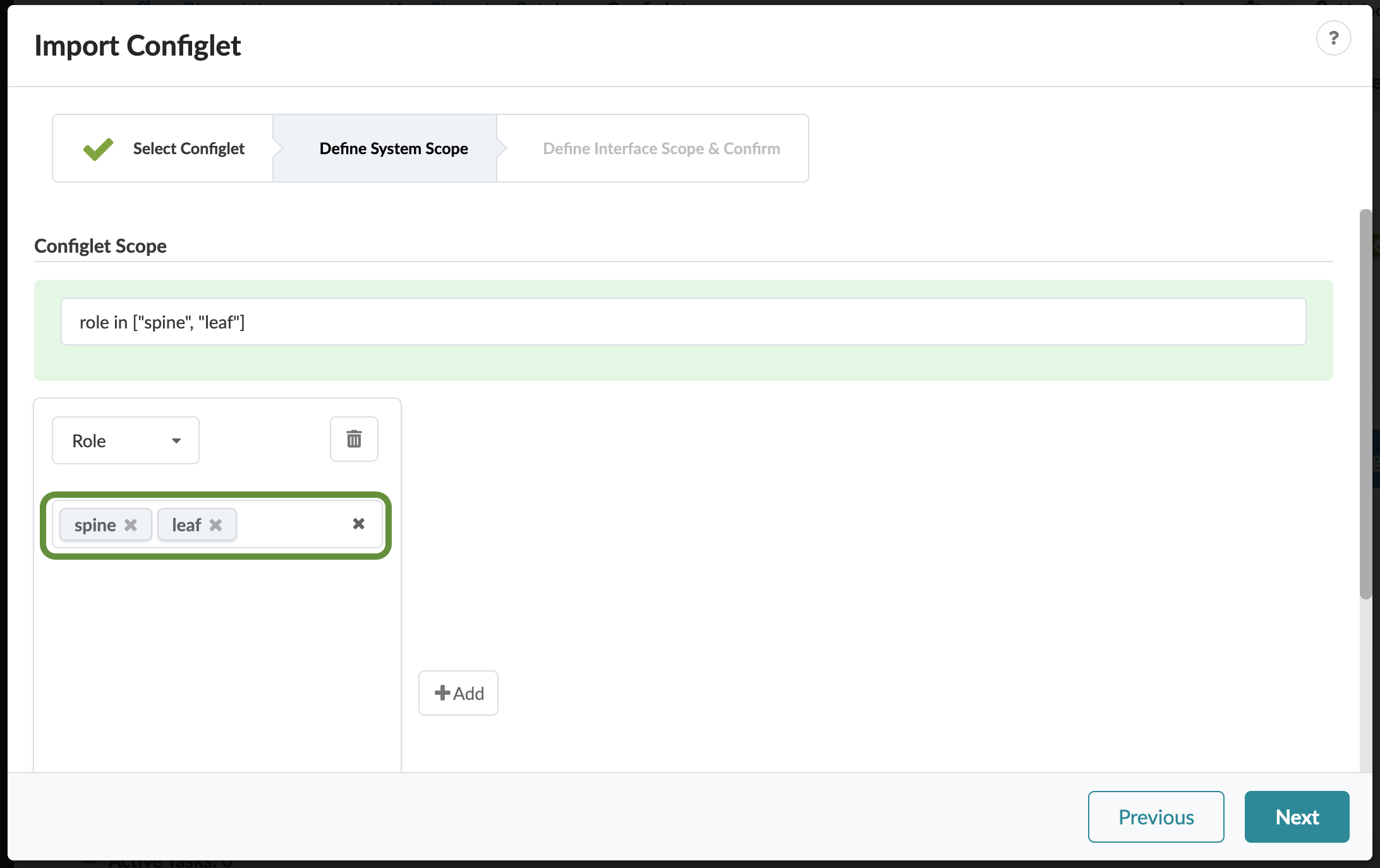
Under Role, select both the Spine and Leaf roles. This determines the device roles to which the Configlet will be applied.
-
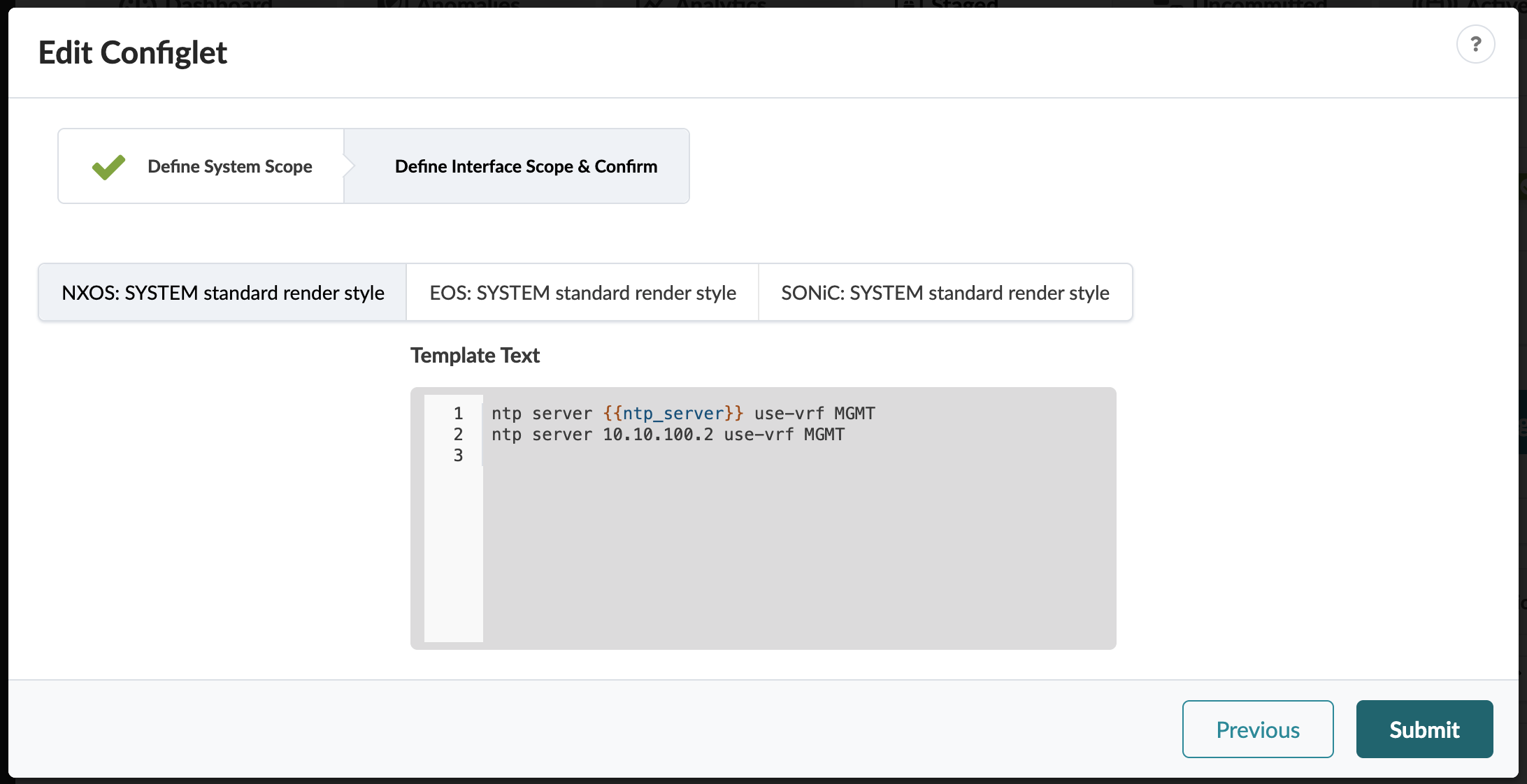
Click Submit. The Configlet is added to the Blueprint catalog.
-
Click Uncommitted. In the Logical Diff tab, verify that the Property Sets and Configlet were added.
-
Click Commit, enter the revision description "Add US-EAST-NTP configlet", then click Commit to commit the changes to the Active Blueprint and deploy the Configlet.