Lab Guide 1 - Juniper
1. Configuration Deviation
Apstra detects when a manual configuration change occurs on one of its devices. You are then alerted that the network is is outside of its intended state. This simple exercise illustrates a basic function of Apstra’s IBA capabilities.
-
Go to your CloudLabs portal, and toggle the Insert a Configuration Change slider. The slider will turn green and you will see this message:
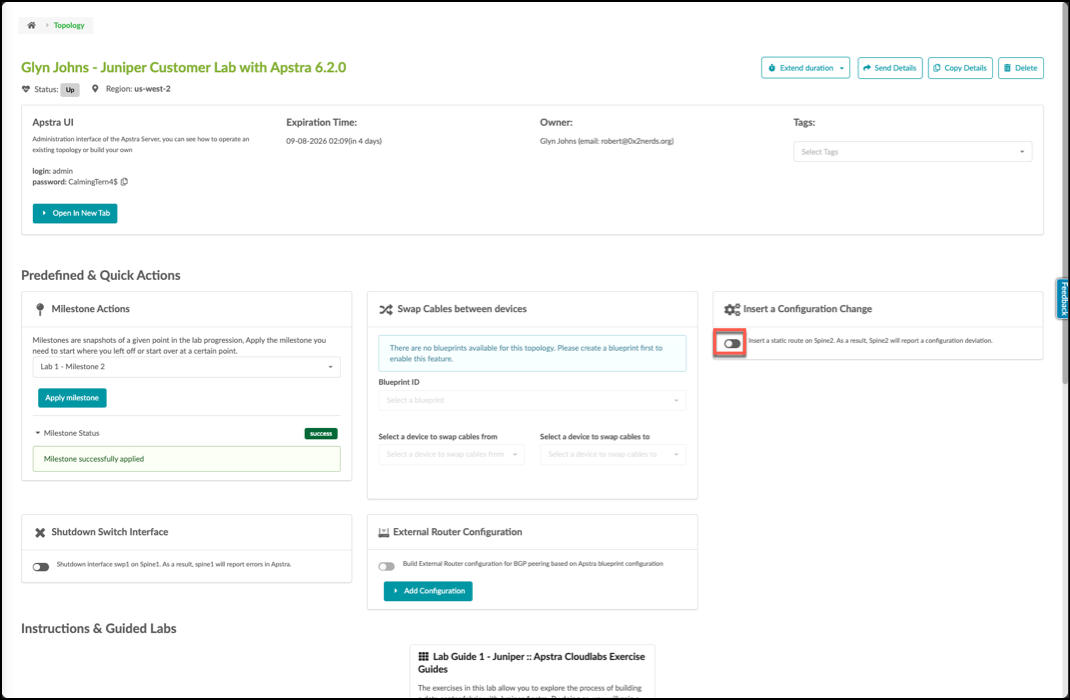
-
Return to the Apstra UI. Soon, a config deviation anomaly will appear. After noting the anomaly indicators, click spine2.
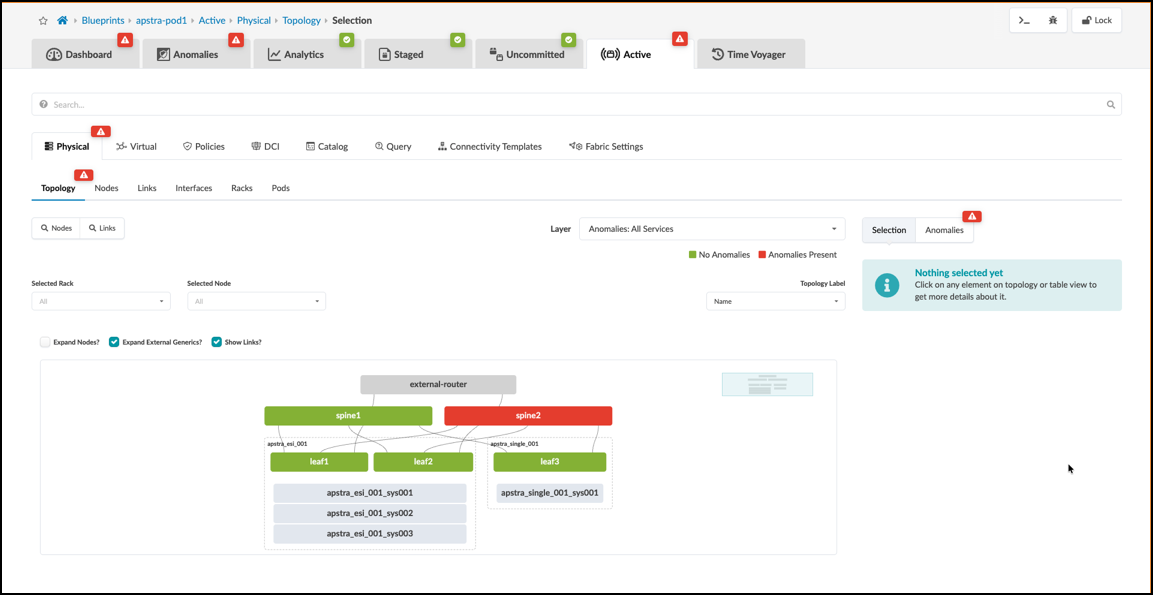
-
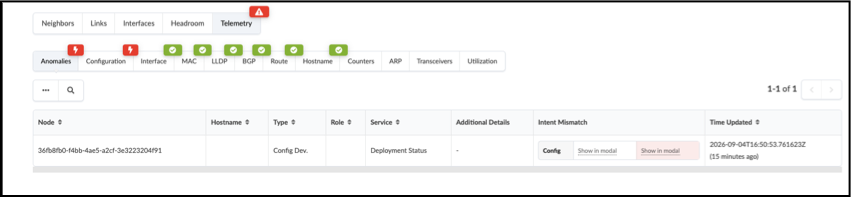
In the spine2 view, now click the Telemetry button with the red indicator to be taken to the Anomalies view for this device.
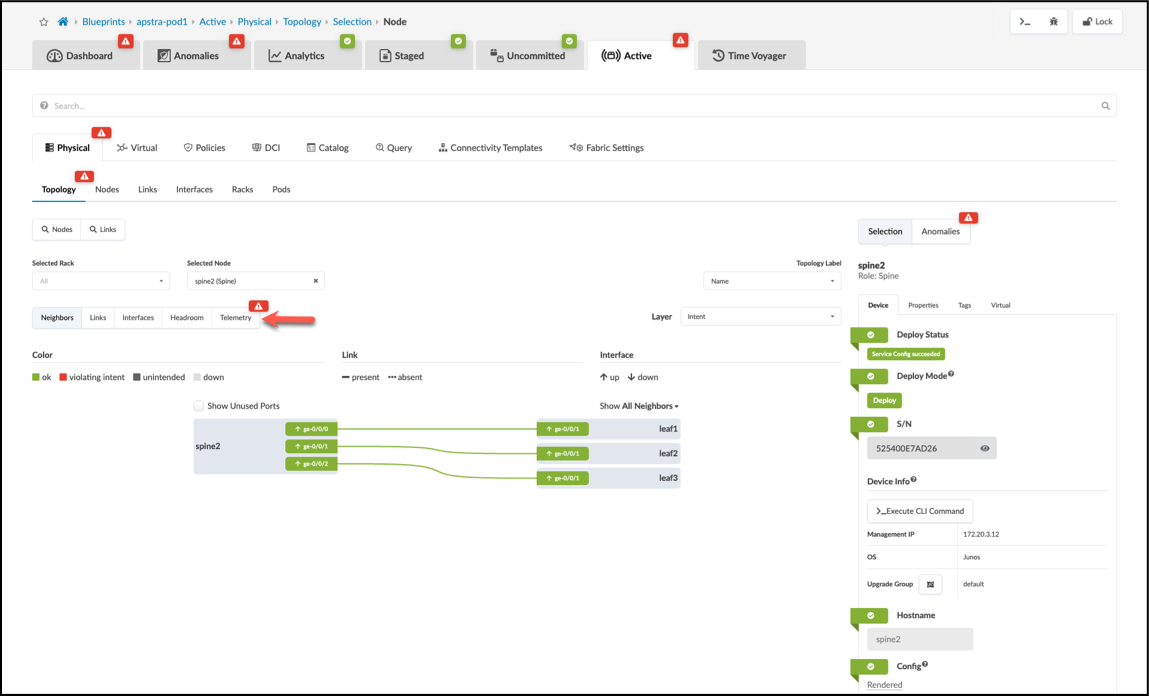
-
This takes you to the Telemetry view for this Spine2 node.
-
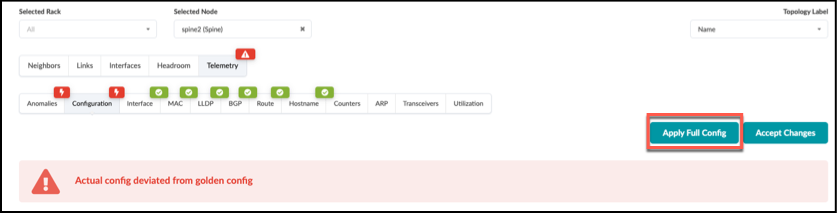
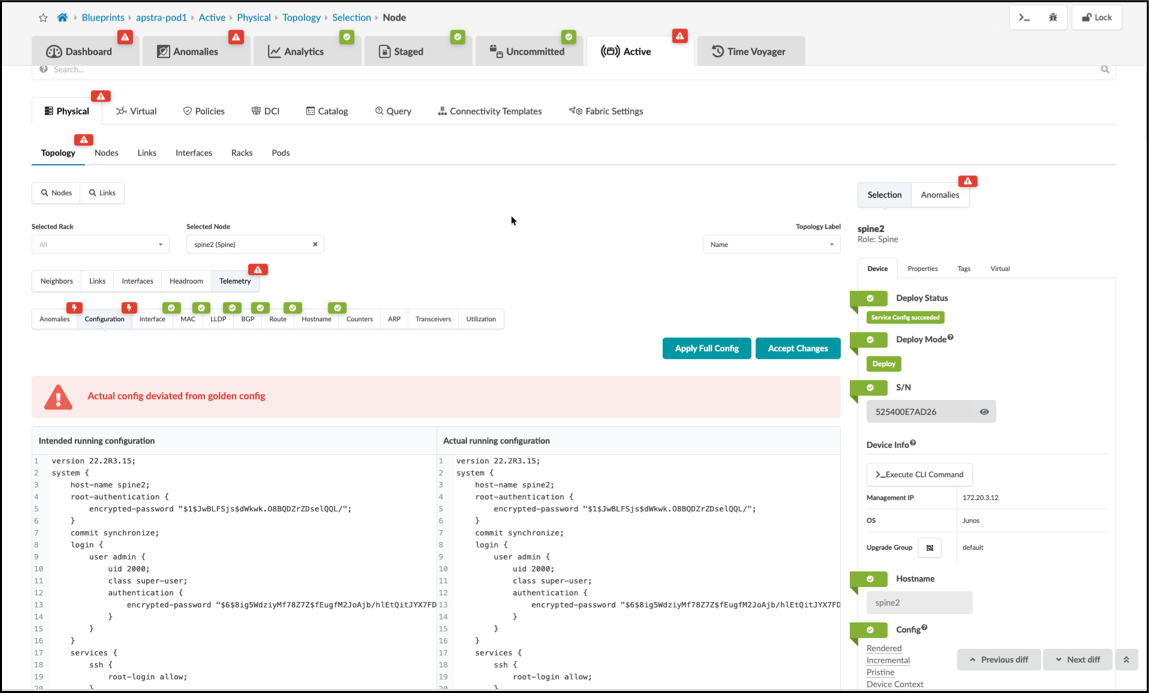
Once in this view, click Configuration to reveal the configuration comparison for this device.
-
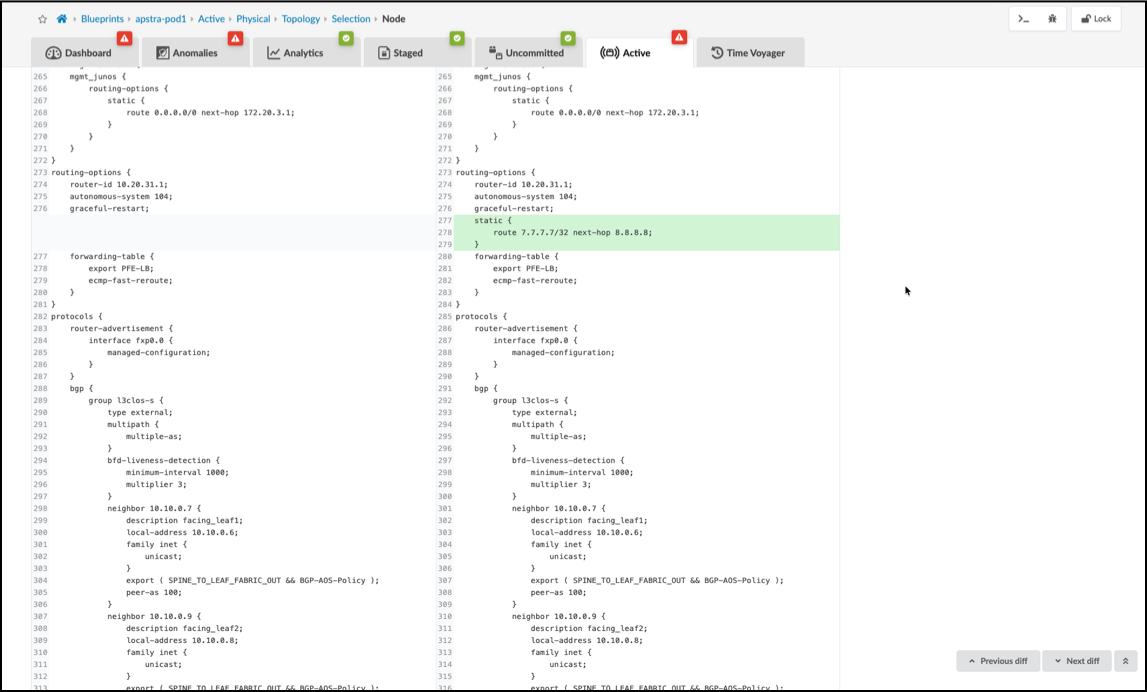
Scroll down this view until you see the highlighted difference between the configurations. As with many things in Apstra, there are multiple paths you can take to arrive at this view. If you wish, you can take time to follow the red anomaly indicators in the UI to discover these other paths.
-
After you’ve viewed the source of the anomaly, you can restore the original config by returning to the CloudLabs portal and toggling-off Insert a Configuration Change and the blueprint anomaly will clear after a few moments. However, in a production situation, any configuration deviation alerts can be acknowledged using the Accept Changes button. This action simply suppresses the anomaly until the next time a Commit operation occurs on this device. At that time, Apstra will return the device to the intended configuration and the inserted command will no longer be present. Use of a Configlet would be necessary to make such a configuration entry persistent.
-
Another path you can choose is to select the Apply Full Config option. This restores the device back to the intended configuration on the spot.