Lab Guide 1 - Multi-vendor
Device Management
Apstra automates the installation and verification of Apstra agents on network devices with its integrated agent installer. This tool can be used in environments without a ZTP server or for one-off agent installations. For this lab, the device agents have been pre-installed for you. To place the devices under Apstra management, you will acknowledge them now.
Bring Devices Under Apstra Management
-
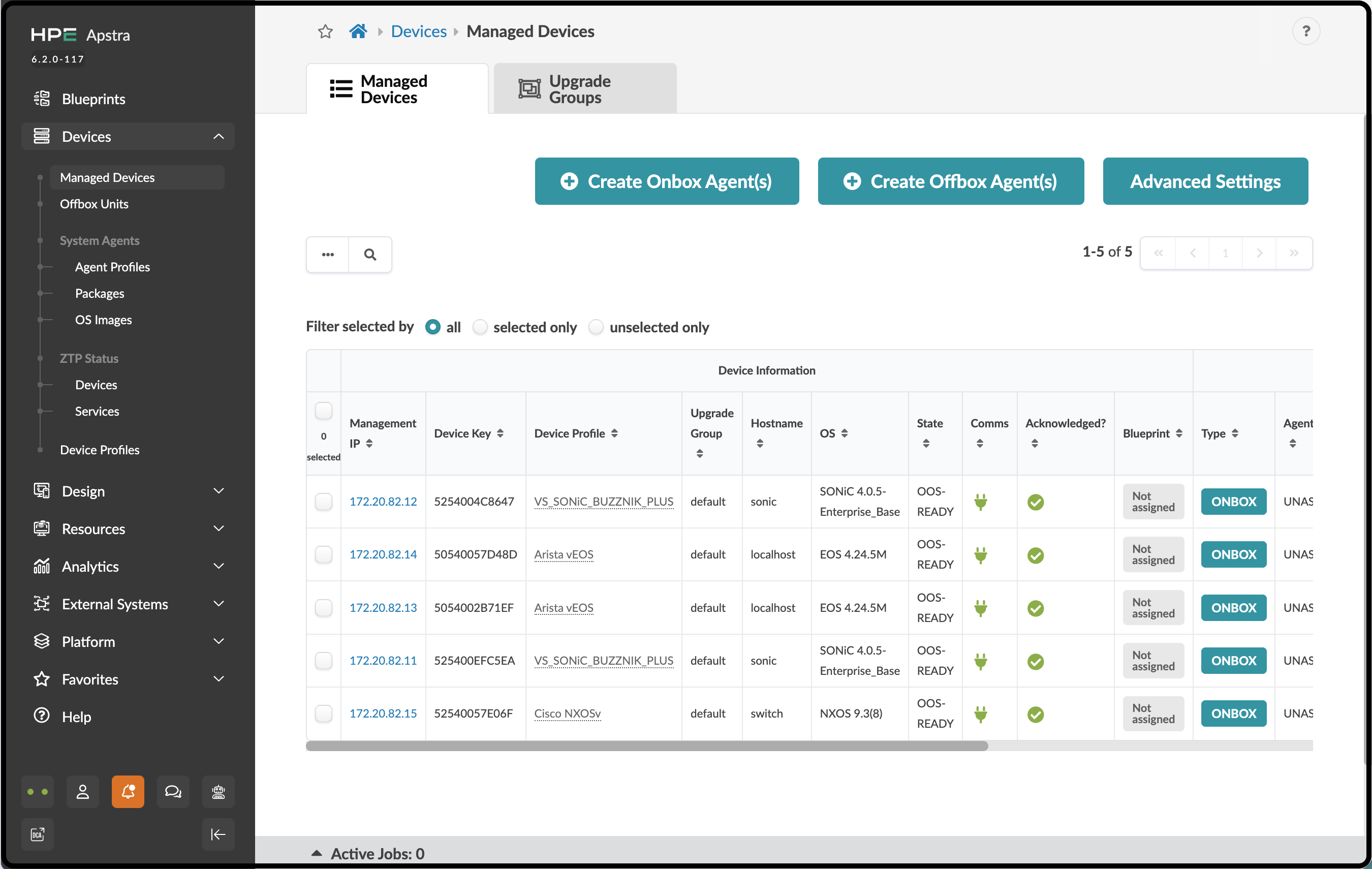
Navigate to Devices > Managed Devices. Devices that are running the onboard Apstra agent or are connected to Apstra through an off-box agent are listed here. Your management IP addresses will be different from those shown in the image below.
-
Click the checkbox in the column header to select all five devices. A row of icons appears above the list for tasks that can be performed on the selected devices.
-
Click the Acknowledge selected systems button (the first button on the left), then click Confirm to acknowledge the devices and return to the list view. The fields in the Acknowledged column change to green check marks, indicating that the devices are ready to be managed by Apstra.
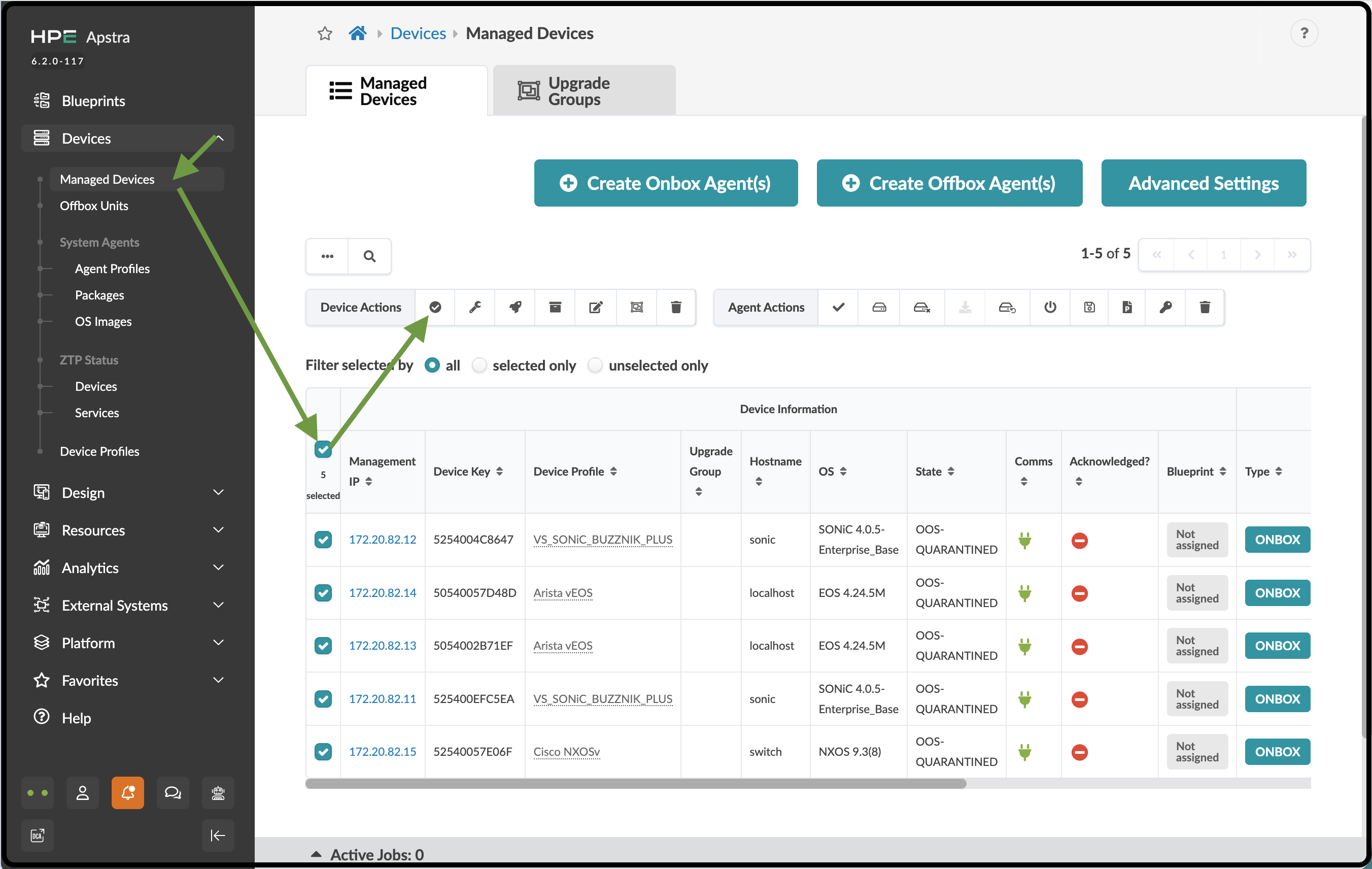
-
When all devices are acknowledged, your Managed Devices table should look similar to the image below.