Section 0: Find your assigned pod

This hands-on-lab leverages HPE Networking Data Center Director in our Cloudlabs portal for the exercises. Follow the steps below to locate the link to your lab pod.
Each station has a number assignment. Locate the number and use the pod link assigned to your station. Be careful to select the correct link. If you are unsure, ask your instructor for help.
Step 1: Find the Cloudlabs link for your station
-
Click here to Find Your Pod Link.
-
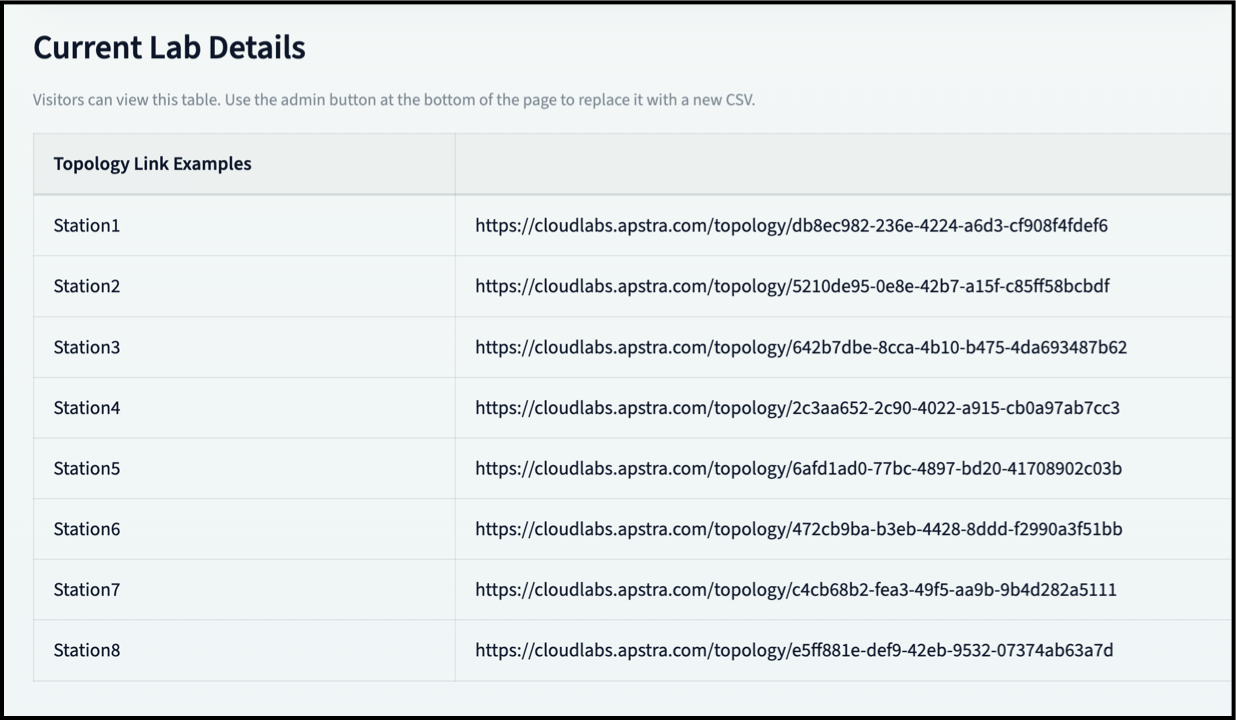
Locate the pod link for your Station ID (Station1, etc.) in the table on the website. Select the text for the link, copy it and paste it into a new browser tab. Each pod has unique credentials for the admin account and are found on your dashboard page. Use the password you find there to log in to the pod.
THE LINKS IN THE IMAGE BELOW ARE EXAMPLES AND ARE NOT VALID.
Step 2: Open your pod dashboard
-
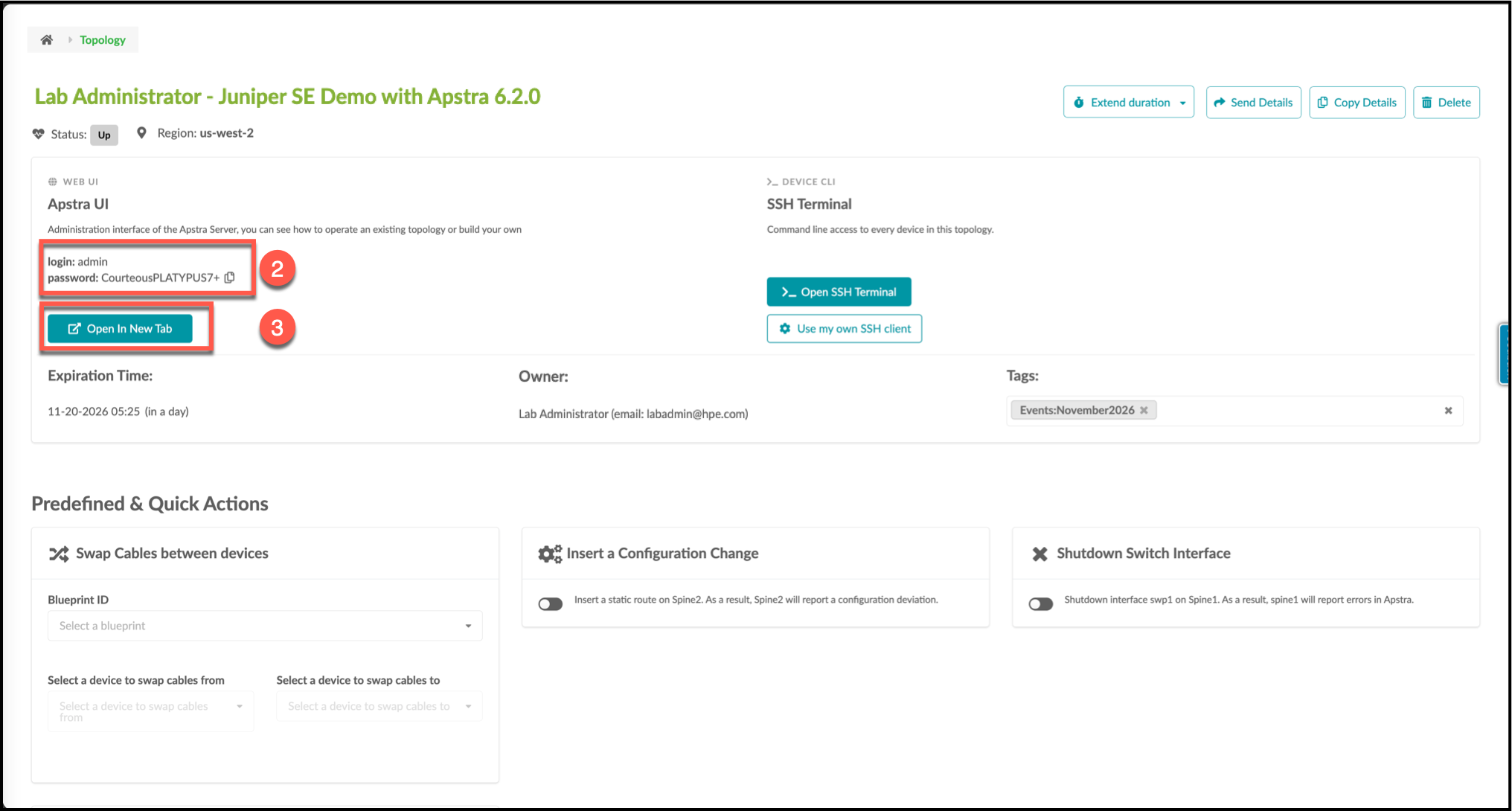
The Cloudlabs Dashboard is where you perform actions related virtual lab environment. This is where we launch the Data Center Director application.
-
Locate and copy the password for the admin account.
-
Click the Open in a New Tab button to open Data Center Director. Sign in using the credentials you find at this location in your dashboard.
Step 3: Blueprints View
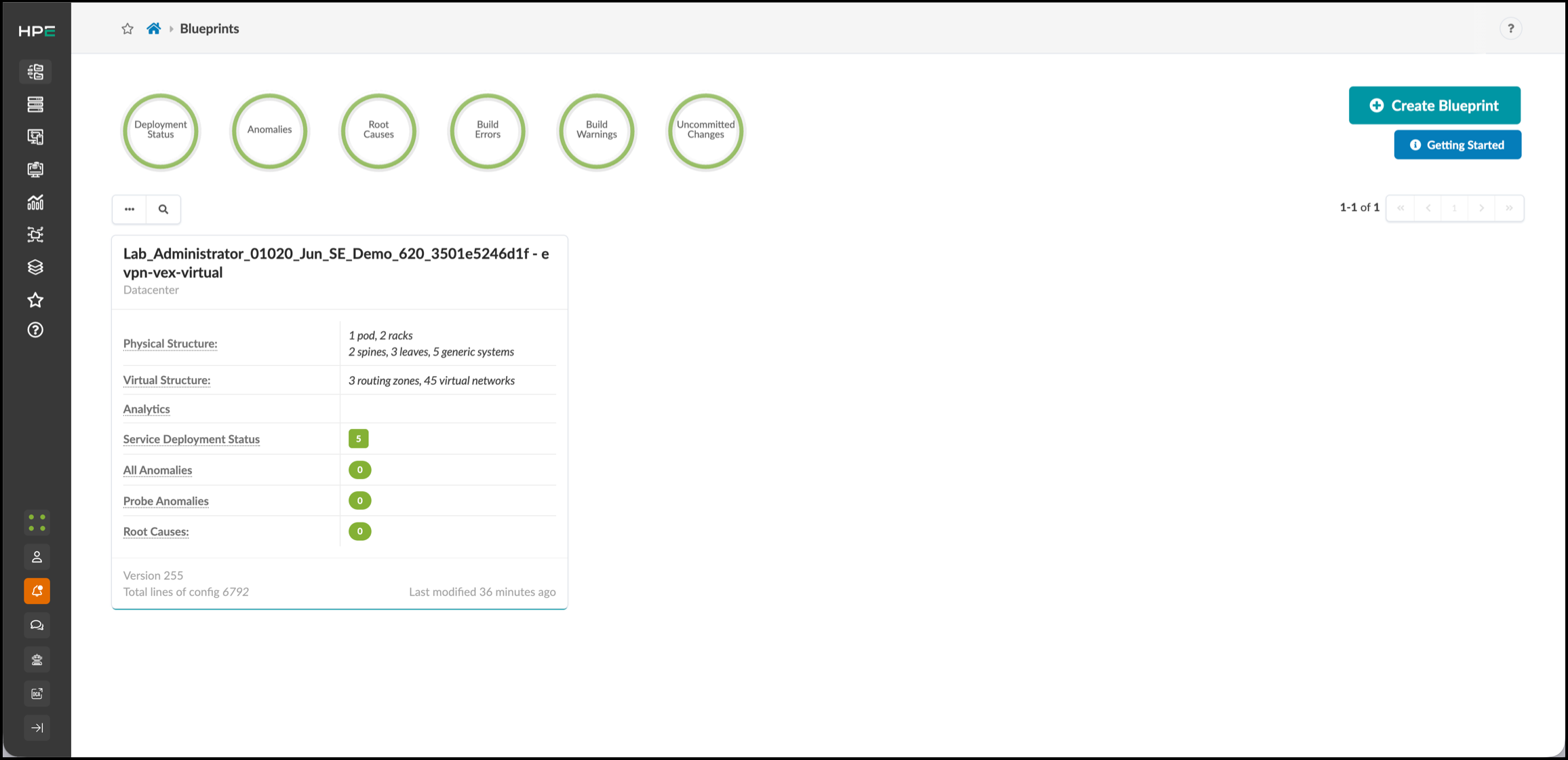
After you are logged in, you will see the Blueprints page. There is a blueprint for an operating network already in-place. It has green indicators showing us that the network within is operating without errors. If it wasn’t, we would immediately see other colors alerting us to conditions requiring our attention.
Let’s proceed to the next section to explore the blueprint and learn how to navigate within Data Center Director’s user interface.